Day-News
Development build of main. It can be unstable. Get the 0.2.1 release instead a00e647
About
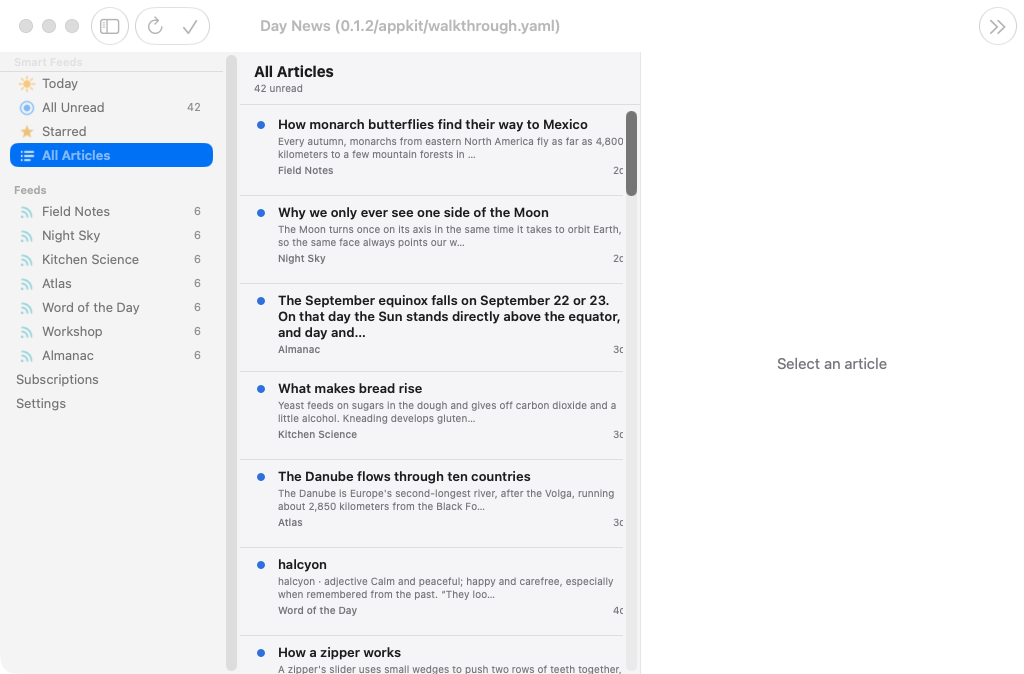
A feed reader in three panes on a desktop and three taps on a phone, built with Day in one Rust codebase and rendered with the platform’s own widgets on iPhone, Android, Mac, Windows, Linux, HarmonyOS, and the web.
Subscriptions, timeline, and article side by side on macOS
Run it in one command
Install the day CLI, then let it clone, build, and launch the app for your desktop:
cargo install day-cli
day launch --git https://github.com/daybrite/Day-News.git
day doctor lists what your platform’s toolkit needs and prints the install command for anything
missing. The launch prints where it put the checkout, so you can open the code and change it.
What you get
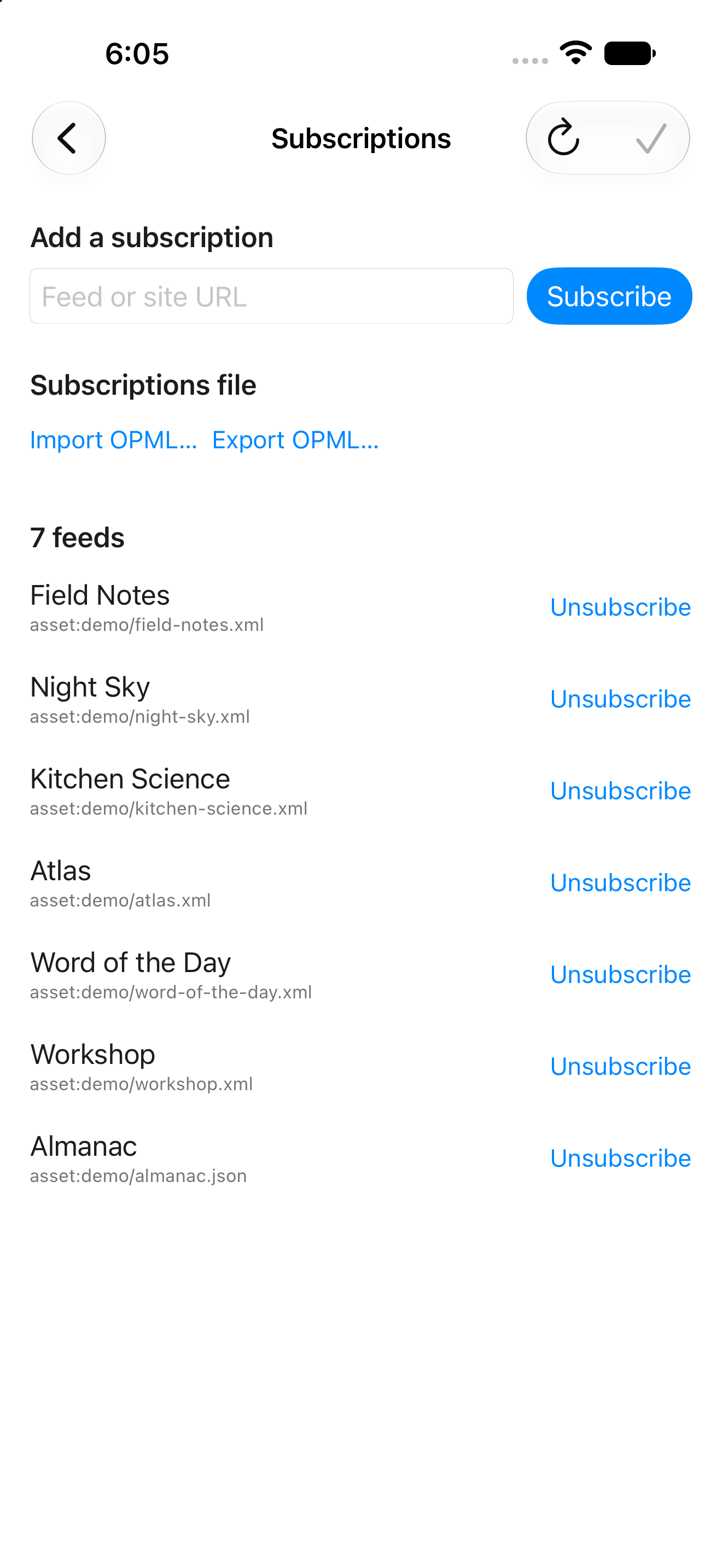
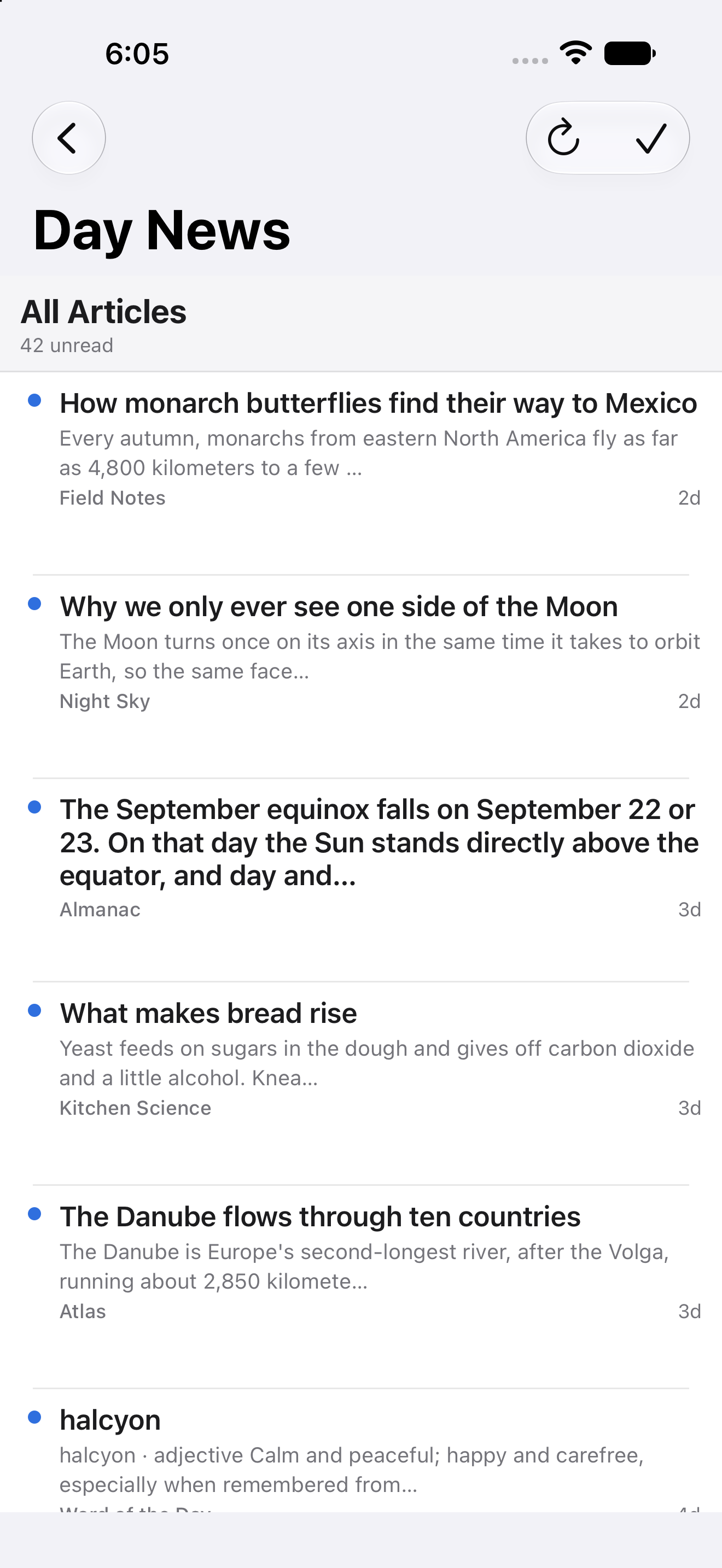
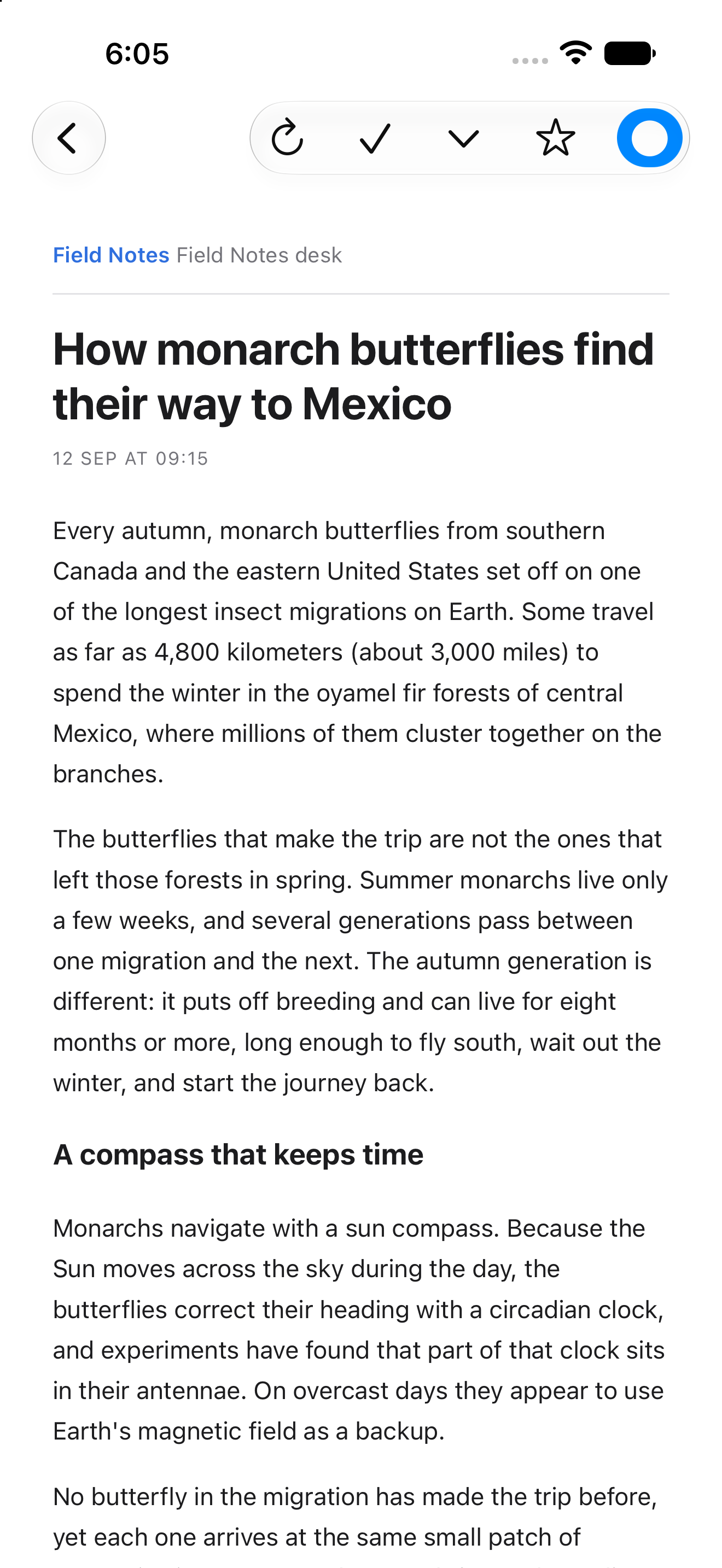
Subscriptions on the left, the timeline in the middle, the article on the right, in the layout NetNewsWire made familiar. On a phone the same three panes become three taps, each one a native push.
Subscriptions on iPhone The timeline on iPhone An article on iPhone Search results on Android

- RSS, Atom, RDF, and JSON Feed.
- Smart feeds for Today, All Unread, Starred, and All Articles, plus folders with unread counts and a marker on any feed that stopped responding.
- Full-text search across every article, matching as you type.
- Star what you want to keep and mark what you have read. A refresh never undoes either.
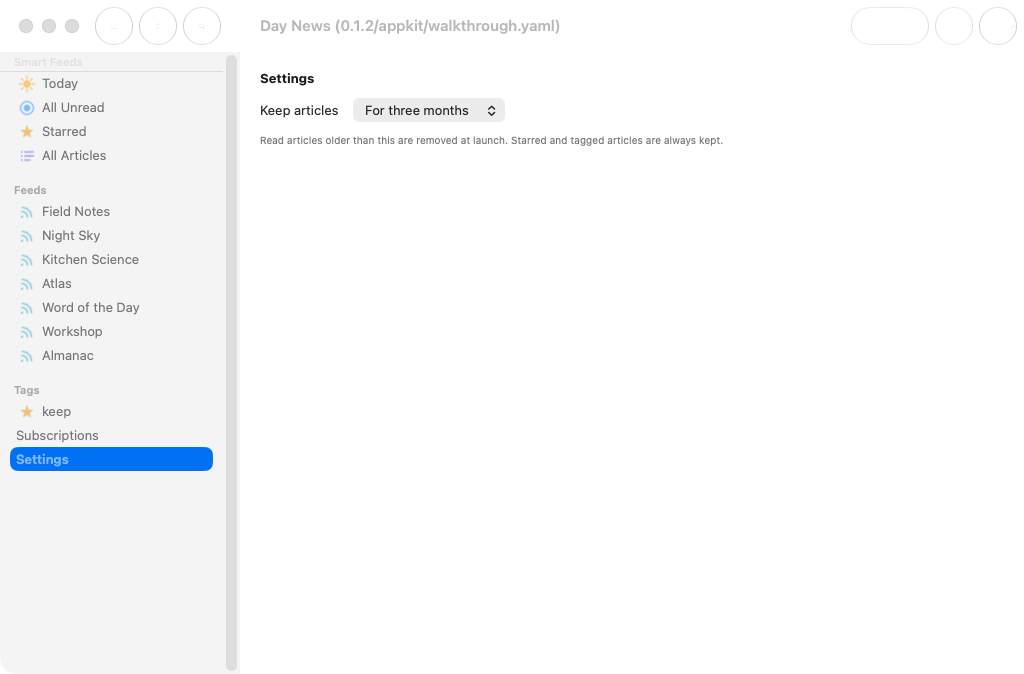
- Settings are Day’s shared surface: the Settings window behind Command-comma on a Mac (and Preferences on GNOME and KDE), a Settings section of the sidebar on a phone and the web, and an About window or card with the version from the manifest. General holds live Light, Dark, or System appearance and a language selector (English currently ships); Browser holds the browser choice for Day News on a Mac (links follow the system browser elsewhere) and Incognito Mode.
- Articles settings offer an independent text-size slider, feed grouping, and zero to five preview lines (two by default), with matching row heights and a compact, single-row empty state. List text defaults to 120% and reader text to 140%; every choice persists across launches.
- Reader settings include a persistent text-size slider, an installed-font menu with reading recommendations, native background/text color wells, and the inline and auto-load defaults. Article → Increase/Decrease Text Size (Command-plus/minus) updates the same setting. Styles apply without reloading the article. Reset Styles restores System appearance and automatic reader styling while keeping other settings.
- Article links open externally while the reader keeps its place. The browser controls whether the destination appears in a new tab or window. Article → Open in Browser opens the selected article with Return/Enter, without a modifier key.
- Import and export OPML with folders intact, so moving in or out is a single file.
- The timeline is a native recycling list with the platform’s own swipe actions and keyboard navigation, and the article pane is the system web view over a document generated per article — or, where the platform ships no web engine, the same article composed from pieces.
The app talks directly to the sites you subscribe to. There is no account and no sync service in the middle.
The same code on every platform
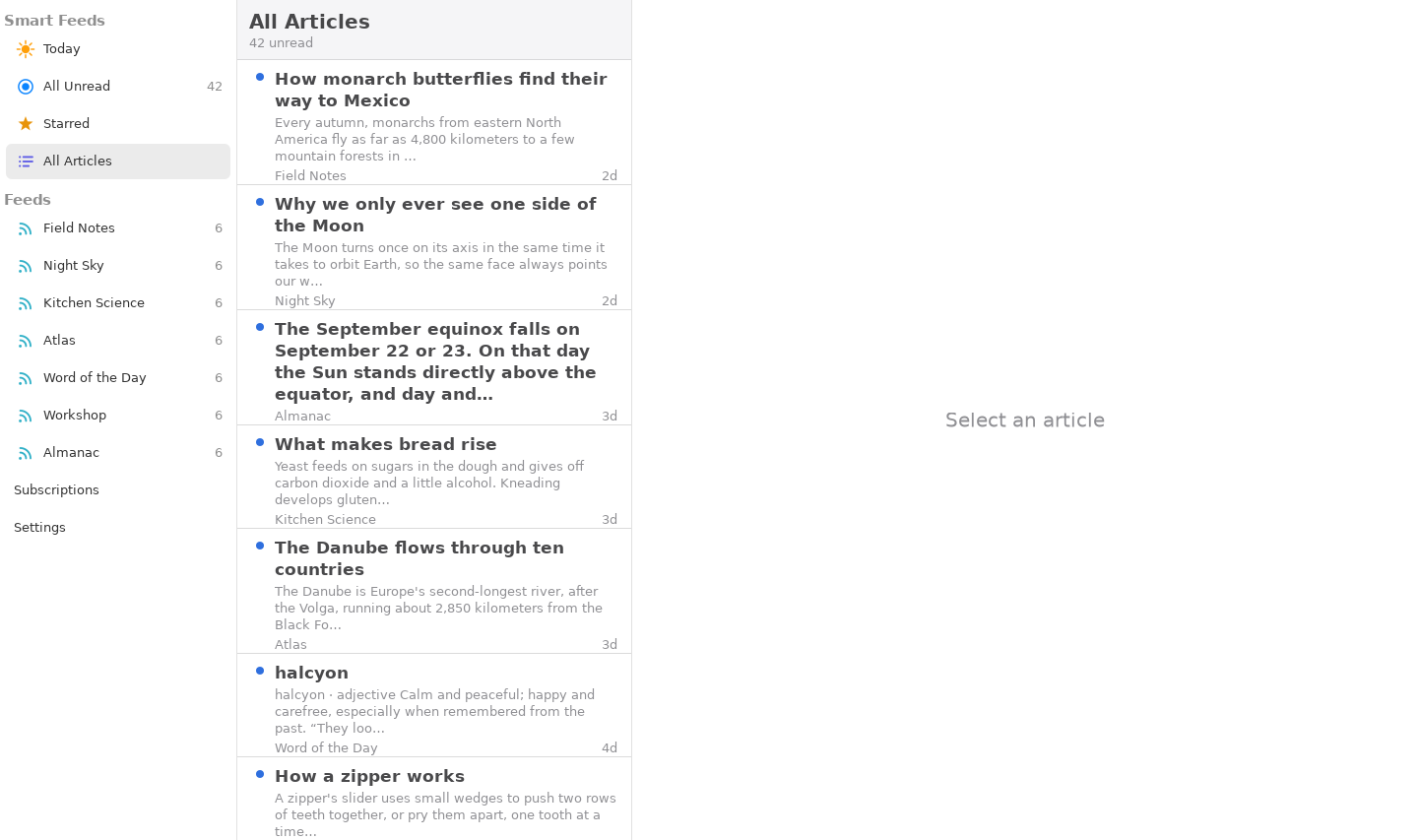
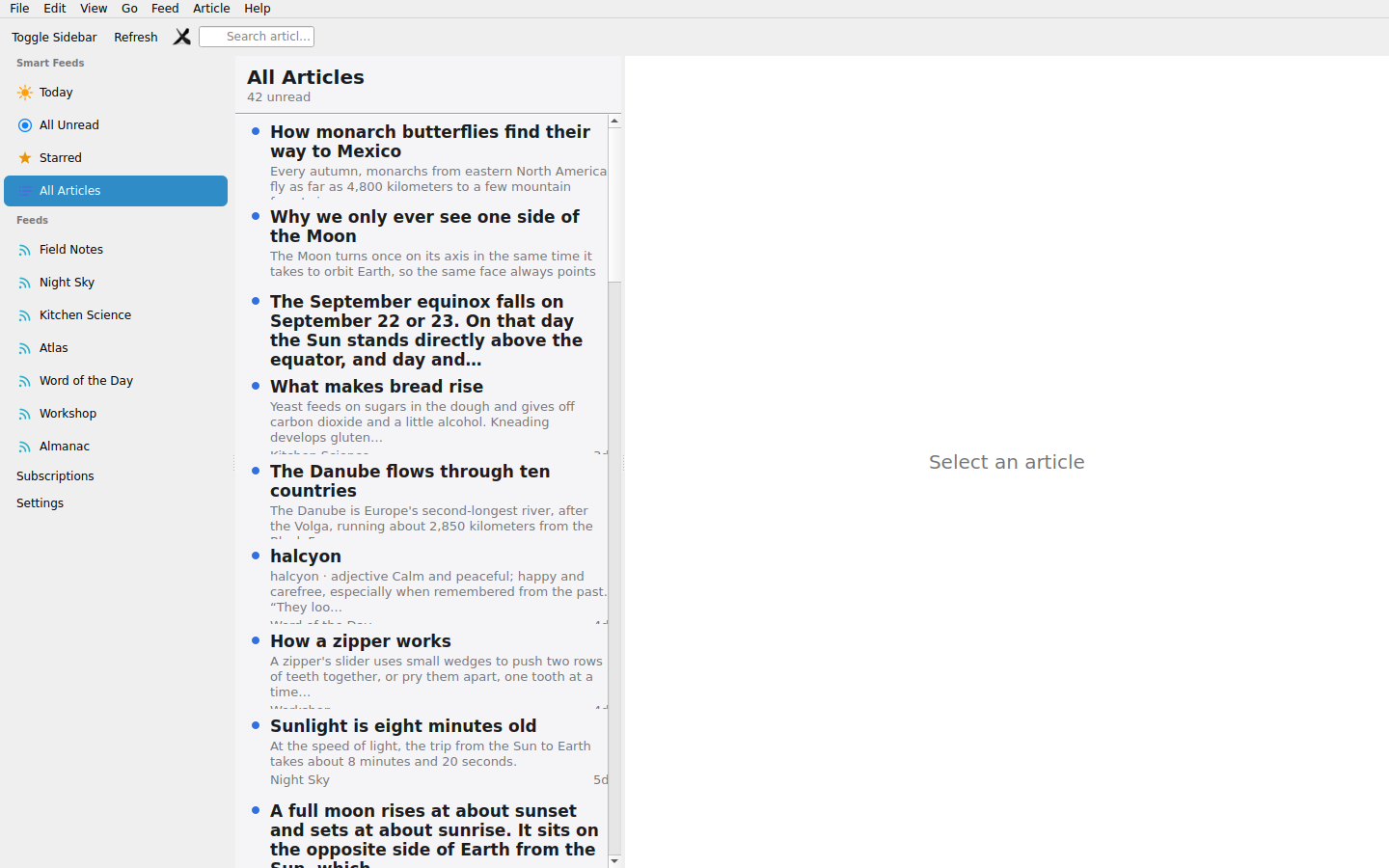
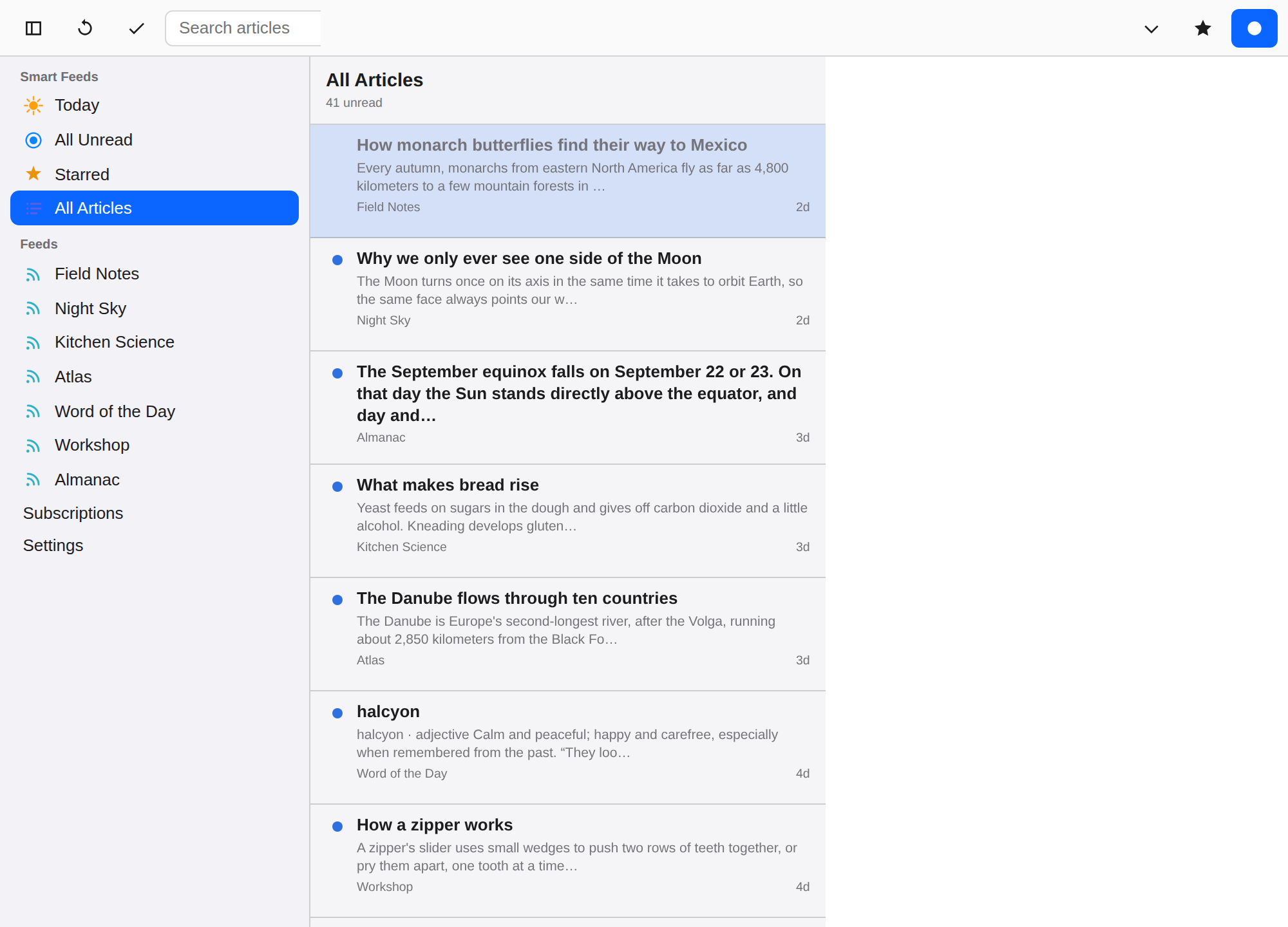
These captures come from the app’s own CI, which runs the walkthrough on every target and publishes the results to the gallery.
| Windows · XAML | Linux · GTK | Linux · Qt |
|---|---|---|
| All Articles on Windows | Timeline on GTK | Timeline on Qt |

| Web · DOM | Android · Material |
|---|---|
| An article in the browser | An article on Android |

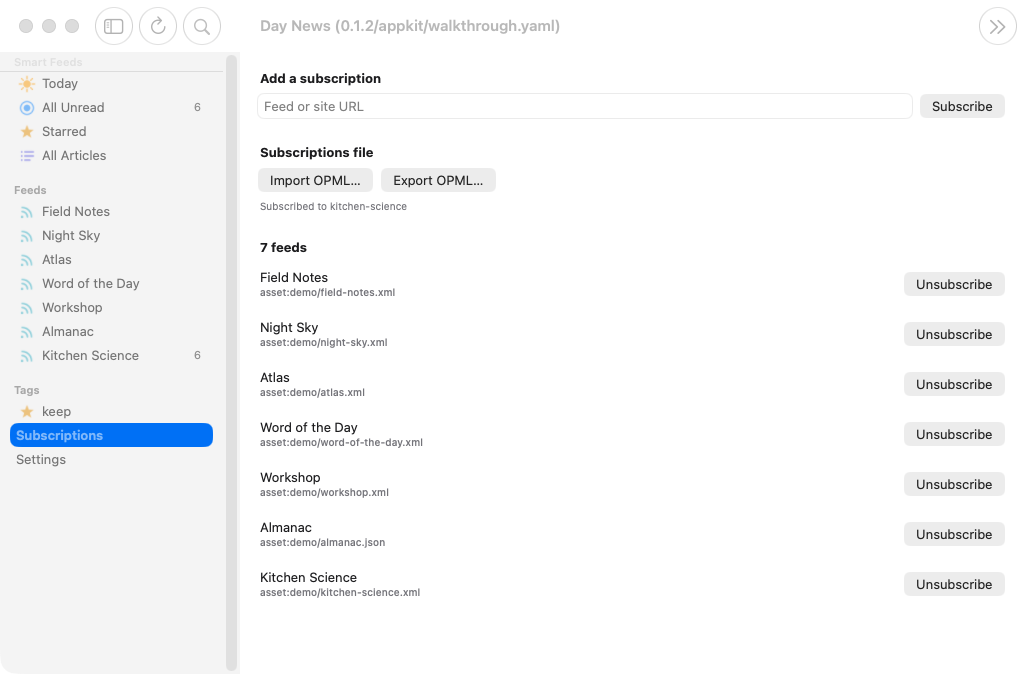
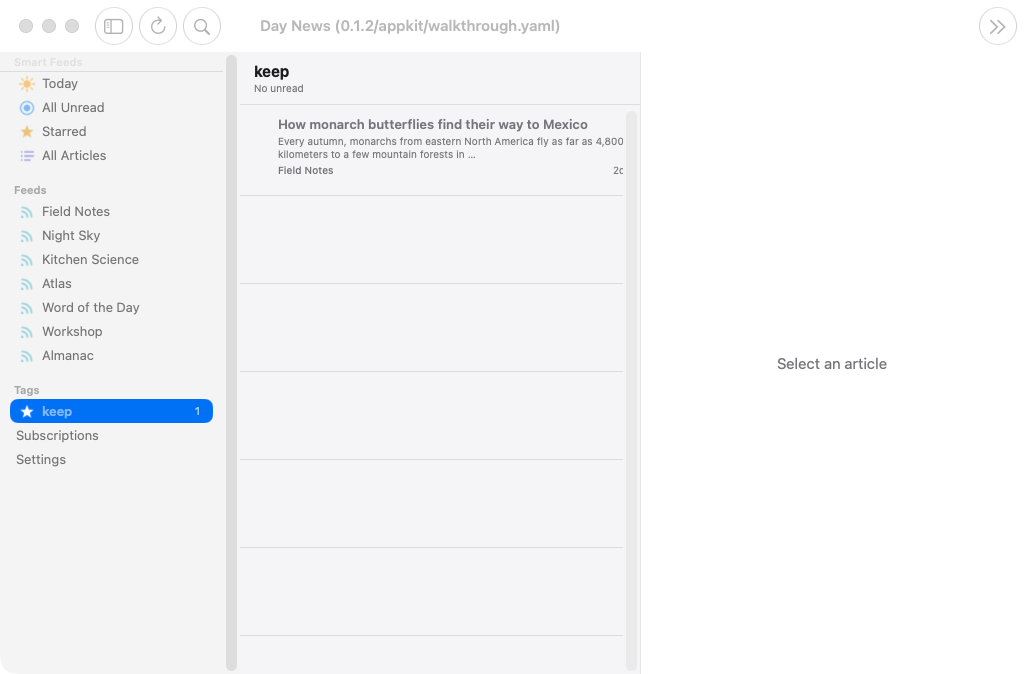
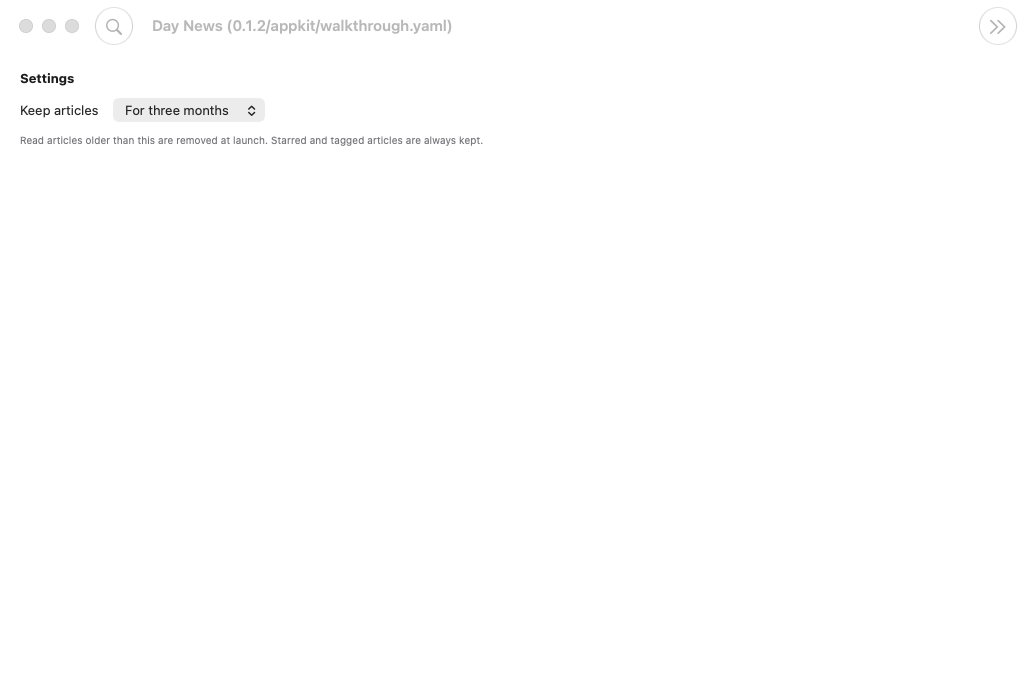
Managing subscriptions, the timeline scoped to a tag, and the sidebar tucked away:
Subscriptions management on macOS The timeline scoped to a tag on macOS
The sidebar hidden on macOS Settings on macOS
Build from a clone
Day compiles one toolkit backend per binary, so name a target when you build or launch. Every
target the app ships is listed in Day.toml.
day doctor                       # toolchains present and missing, with fixes
day launch -t macos-appkit       # build + run
day launch -t ios-uikit          # needs a booted Simulator
day launch -t android-material        # needs a JDK and a running emulator or device
day launch -t web-dom            # serves the WebAssembly build locally
To build and launch on every connected physical Android phone, iPhone, and iPad:
~/bin/day.launch.connected --dry-run  # preview devices and commands
~/bin/day.launch.connected            # build once per platform, install, launch
The script preserves existing app data, supports the iOS 15 iPad as well as newer iPhones,
and reports failures while continuing with other devices. Android emulators are excluded
unless --include-emulators is passed. Use --skip-build to deploy existing debug builds.
On macOS it needs Xcode, libimobiledevice, and ideviceinstaller (brew install libimobiledevice ideviceinstaller), with trusted/unlocked devices and an Apple development
account configured in Xcode. Android needs the SDK and authorized USB debugging. The default
Apple team comes from the Xcode project; set it with --team TEAM_ID or IOS_TEAM.
The generic launcher uses day.cli from PATH (or ~/bin/day.cli) to run the source-checkout
CLI. DAY_CLI and ADB can override tool paths. Run inside any Day app checkout, or pass
--project /path/to/app. Deployment logs are saved under build/day/connected-devices/.
A bare cargo build uses the crate’s default mock backend, which is what lets rust-analyzer and
cargo check work with no flags. To pick a toolkit from plain cargo, turn the default off first:
cargo build --no-default-features --features appkit # or gtk / qt / uikit / material / xaml / dom
A fresh install has no subscriptions. Seed some, then drive the whole reader loop:
day launch -t macos-appkit --script dayscript/seed-demo.yaml    # the bundled demo feeds, offline
day launch -t macos-appkit --script dayscript/import.yaml       # a sample OPML, through the file picker
day launch -t android-material  --script dayscript/seed-mobile.yaml  # a few live feeds, by URL
day launch -t macos-appkit --script dayscript/walkthrough.yaml  # the full loop, with screenshots
Day News keeps its library, library.db, in its data directory and the feed icons in its cache
directory, the folders Day gives every app
(where app data lives). On
macOS those are ~/Library/Application Support/dev.daybrite.news/ and
~/Library/Caches/dev.daybrite.news/.
For an isolated validation run, pass --env DAY_DATA_DIR=/absolute/writable/path
to day launch. The library, the icon cache and Day’s own files then all go there; omit it for
normal use. On iOS and Android the path must be inside the app’s sandbox.
Those dayscripts are the UI tests, and the walkthrough is
what CI runs on every target to produce the gallery. Everything below the UI is testable without a
screen or a network: cargo test --workspace.
To build against a local day checkout instead of the pinned git revision, let the CLI write and
verify the patch table:
day patch --local /path/to/day
Inside the code
Load Full Content (Article menu, ⌘⇧R on macOS / Ctrl+Shift+R elsewhere) loads the publisher’s full article into the current reader. The article toolbar exposes the same command on phones. Invoke it again to return to the RSS version, or while loading to cancel. Your reader typography and colors apply to both versions.
If extraction fails, the Load Full Article box shows a warning button without moving the article. Hover for the error message, or click/tap the warning for details. The load button remains available to retry; retrying or selecting another article clears the warning.
Extraction runs locally using bundled Mozilla Readability and DOMPurify. It does not execute
publisher scripts, so pages requiring JavaScript, sign-in, or a subscription may not yield an
article. Web builds also remain subject to publisher CORS rules. NetNewsWire’s Feedbin service
requires authorized application credentials; Day News does not reuse NetNewsWire’s credentials
or impersonate it. ArticleExtractor in src/extraction.rs is the replacement point for an
authorized service or another local engine.
Custom reader scripts: Settings → Reader → App Reader Script… edits the default for every site. Site Reader Script… on a feed overview edits that site’s override; Settings → Reader → Manage Site Scripts… also lets you select an installed override or enter any site URL. The URL is reduced to its origin (scheme, host, and port). Matching uses the article’s final URL after redirects; subdomains, HTTP/HTTPS, and non-default ports are separate sites. Precedence is site override → app script → bundled Mozilla Readability.
Use Mozilla Template, paste code, or Import… a UTF-8 .js file (up to 256 KiB).
Save Script installs a copy that survives relaunch; editing the original file does not
change the installed copy. Export… saves the editor contents. Remove Override restores
inheritance, and Close discards unsaved edits. Changing an installed script cancels pending
extraction and clears cached full content in all windows. Load Full Content again to test it.
The script must define this synchronous function (no modules or async return values):
function extract(document, url, Readability) {
  // Work on a sanitized, detached document with its base URL already set.
  document.querySelectorAll(".newsletter-promo").forEach(node => node.remove());
  return new Readability(document, { maxElemsToParse: 50000 }).parse();
}
A script may instead return { content: "<p>Extracted HTML</p>", title: "…", byline: "…" }.
Only content is required. Return null to use bundled Mozilla on an untouched copy of the
page; this skips the app script too. Syntax/runtime errors show a custom-script error and
leave the RSS preview readable. The app sanitizes both the input and returned HTML.
These are trusted scripts running in the reader’s JavaScript engine, not a security sandbox:
install only code you trust. A nonterminating script may stall the web engine; the normal
30-second extraction deadline cannot interrupt synchronous JavaScript.
src/lib.rsis the shell: a typed-route sidebar whose article list is a content-list pane, so desktops get three columns and a phone pushes through them.src/timeline.rsis the article list, a native recyclinglistwith platform selection and edge swipe actions.src/reader.rsis the article pane: a native web view over a generated document, and the same article composed from pieces when a backend has no web engine. GTK on macOS uses WebKit.src/extraction.rsdefines the extraction provider;src/reader_view.rsowns per-window loading, cancellation, errors, and the temporary full-text overlay.src/settings.rsdeclares the settings: the typed, persisted preferences the other modules read, and the groups (General, Articles, Reader, Browser, Feeds) and About that Day’s shared settings surface presents on every platform.src/subscriptions.rs,src/menus.rs, andsrc/toolbar.rscover feed management with OPML import and export, the app menus, and the window toolbar.crates/holdsdaynews-opml,daynews-feed,daynews-db, anddaynews-core: OPML, feed parsing, the store, and the view model, all headless.resource/locales/en/app.ftlcarries every user-facing string.resource/assets/demo/holds the articles the screenshots show: seven feeds written for the app, one set per language, read offline from inside the app.platform/holds app-owned Apple host sources and any native resource customizations. Day generates the build projects underbuild/.
Test fixtures live in the repository; crates/daynews-feed/tests/data and
crates/daynews-opml/tests/data record where the captured feeds and the vendored OPML samples came
from. day lint checks routes, element ids, and locale coverage, and DESIGN.md is the
architecture.
Day News is open source under the Apache-2.0 license.
Feed refreshes run up to four requests concurrently, including newly added subscriptions. ETag and Last-Modified validators survive relaunch; unchanged feeds return 304 without reparsing or rewriting articles. On AppKit/UIKit, active feeds show a subtle spinner over their sidebar icon while connecting or when the response length is unknown. A known-length download fills a circular progress ring. Feed names and unread counts stay in place. Native feed parsing runs off the UI thread, and downloads have a 30-second request deadline and 16 MiB body limit.
The sidebar discovers color site icons from feed metadata, home-page icon links, web manifests, and conventional favicon/touch-icon locations. Raster icons are normalized to 64-pixel PNG thumbnails and cached in the app data directory (seven days for successful lookups, one day for misses). Cached thumbnails appear before network discovery, which runs four sites at a time with a 25-second per-site deadline. Sites without a usable icon keep the RSS symbol; no third-party favicon service receives the subscription list. SVG-only icons currently fall back to another raster candidate or the RSS symbol. Web builds retain the RSS fallback because the local filesystem cache is a native capability.
Feed → Show Only Unread Feeds and the toolbar’s filter button (above the article list on macOS, in the feed bar on iOS) control the same persistent preference. Smart feeds remain available, and hiding an empty feed does not close an already open article.
The reader toolbar and Go menu offer Previous Article (⌘[) and Next Article (⌘]) within the current feed or search results, stopping at either end. Next Unread (⌘/) uses a double-chevron icon and continues across feeds. Other desktop platforms use their primary shortcut modifier in place of Command.
Copy Article Link (⇧⌘C) is in the Article menu and reader toolbar. Right-click or long-press an article row to copy its link, open it in the chosen browser, tag it, or toggle its read/star state without opening it in the reader first.
Article and Reader View loads emit JSON diagnostics at INFO level under day_news::load.
To watch them in the terminal, use an attached launch (omit --detach):
day launch -t macos-appkit --env DAY_LOG=info
Each record includes article_id, a unique load_id, kind, trigger, event, elapsed
milliseconds, current/start/delta process-memory bytes, and the largest memory sample seen
during that operation. article measures selection through the native document-load callback;
reader_view measures fetch, decode and extraction, distinguishing explicit and automatic
triggers, cache hits, errors, timeouts and cancellation. reader_document measures HTML
generation through the native load callback; reader_inline measures the DOM update, before
its decorative animation or remote images finish. Stage details include HTTP status, redirects
and response/HTML/extracted-content sizes. Match article IDs to follow extraction into display.
Memory is the whole app process (Apple physical footprint, Linux/Android resident set, Windows
working set), not per-article allocations or a separate web-renderer process. The sampled peak
is not a continuously measured high-water mark. Unavailable readings are null; web builds
report Wasm linear memory and null elapsed time because Day’s raw DOM runtime has no Rust
monotonic clock. Logs contain IDs and statistics, not article bodies, URLs or cookies. Set
DAY_LOG=warn to suppress these diagnostics.
To log every executed SQL statement, including database-worker queries and migrations:
day launch -t macos-appkit --env DAY_NEWS_LOG_SQL=1
Statements appear on the console with a [Day-News SQL] prefix, including bound values.
This works in debug and release builds without changing DAY_LOG. Any set value enables it;
unset the variable and relaunch to disable it. Logs can include article text and subscription
URLs, and tracing adds overhead, so enable it when diagnosing database behavior.
Network regressions: run python3 tests/feed-refresh-server.py, then launch against a fresh
DAY_DATA_DIR with --script dayscript/feed-refresh.yaml. Relaunch the same library on
macOS with --script dayscript/feed-refresh-relaunch.yaml; /stats on port 28762 should show
additional 304s, no new icon downloads, and at most four active feed requests.
On Windows, launch with day launch -t windows-winui --locale en, keep the sidebar expanded,
and run powershell -File scripts/test-winui-sidebar.ps1. This checks real mouse clicks on
both the text and padding of each smart-feed destination, verifying that the article scope
changes. It complements the dayscripts, whose navigation commands bypass native hit testing.
Feed dashboards include Preview Site or Login and Forget all site information. Preview Site or Login is also available in a feed’s context menu and the Feed app menu when a feed is selected. AppKit opens a narrow native sheet; iPad uses an adaptive sheet. Other backends center a narrow modal panel on wide windows and use the available width on phones. The interactive preview shares its site’s browser profile with full-article loading, including HttpOnly login cookies. Incognito Mode in Settings → Browser uses private browser storage and disables per-feed login, forgetting and reader-option controls. On engines without private browsing, private requests are blocked and the stored article preview remains available. Platform capabilities and storage-location limitations are documented in day-piece-webview.
The local tests/site-session-server.py fixture and dayscript/site-session.yaml exercise
shared login, authenticated reader loading, dashboard reselection, and complete cookie,
localStorage and IndexedDB deletion. site-incognito.yaml can then be driven in the running
app; site-session-restore.yaml verifies that its persistent login survives relaunch.
HTTP interception tests
The feed crate’s tests/interception.rs exercises the normal conditional-fetch pipeline through
day-part-http handlers: validators, identical-body fingerprints, 304 responses and injected
transport failure. Its integration-test process owns the global session; other test executables
are isolated. Existing loopback-server tests still cover the native stack.
For a local app dayscript, use a fresh absolute --env DAY_DATA_DIR=/tmp/news-http-test
(the News store override; DAY_DATA_DIR does not isolate this app), add
--env DAY_NEWS_HTTP_TEST=1, and run
dayscript/http-interception.yaml. This explicitly installs a synthetic publication at
https://dayscript.invalid/feed.json before the app initializes. No external server is contacted
for that origin. Other origins retain normal behavior. CI enables the fixture and runs this
script after the bundled-feed walkthrough. Normal launches install no handler.
Generated native projects
Use a Day CLI with automatic native project generation; Apple builds require Xcode 27
or newer. Xcode project documents, Android Gradle files, and HarmonyOS hvigor files are
created under build/ by day prepare, day build, and day launch. Open the selected
project with day open -t <target>; edits to generated files are disposable. Apple Swift
sources, plists and .xcconfig files, and any Android resource overlays, remain app-owned
under platform/. For additional native configuration, use
day project add-target <target> --persist-native-project to create a persistent override.
Download — iOS (UIKit)
Packed by the last CI run and signed for development.
Screenshots
iOS
iPhone


iPad


Permissions
iOS
No declared permissions.
About
A feed reader in three panes on a desktop and three taps on a phone, built with Day in one Rust codebase and rendered with the platform’s own widgets on iPhone, Android, Mac, Windows, Linux, HarmonyOS, and the web.
Subscriptions, timeline, and article side by side on macOS
Run it in one command
Install the day CLI, then let it clone, build, and launch the app for your desktop:
cargo install day-cli
day launch --git https://github.com/daybrite/Day-News.git
day doctor lists what your platform’s toolkit needs and prints the install command for anything
missing. The launch prints where it put the checkout, so you can open the code and change it.
What you get
Subscriptions on the left, the timeline in the middle, the article on the right, in the layout NetNewsWire made familiar. On a phone the same three panes become three taps, each one a native push.
Subscriptions on iPhone The timeline on iPhone An article on iPhone Search results on Android
- RSS, Atom, RDF, and JSON Feed.
- Smart feeds for Today, All Unread, Starred, and All Articles, plus folders with unread counts and a marker on any feed that stopped responding.
- Full-text search across every article, matching as you type.
- Star what you want to keep and mark what you have read. A refresh never undoes either.
- Settings are Day’s shared surface: the Settings window behind Command-comma on a Mac (and Preferences on GNOME and KDE), a Settings section of the sidebar on a phone and the web, and an About window or card with the version from the manifest. General holds live Light, Dark, or System appearance and a language selector (English currently ships); Browser holds the browser choice for Day News on a Mac (links follow the system browser elsewhere) and Incognito Mode.
- Articles settings offer an independent text-size slider, feed grouping, and zero to five preview lines (two by default), with matching row heights and a compact, single-row empty state. List text defaults to 120% and reader text to 140%; every choice persists across launches.
- Reader settings include a persistent text-size slider, an installed-font menu with reading recommendations, native background/text color wells, and the inline and auto-load defaults. Article → Increase/Decrease Text Size (Command-plus/minus) updates the same setting. Styles apply without reloading the article. Reset Styles restores System appearance and automatic reader styling while keeping other settings.
- Article links open externally while the reader keeps its place. The browser controls whether the destination appears in a new tab or window. Article → Open in Browser opens the selected article with Return/Enter, without a modifier key.
- Import and export OPML with folders intact, so moving in or out is a single file.
- The timeline is a native recycling list with the platform’s own swipe actions and keyboard navigation, and the article pane is the system web view over a document generated per article — or, where the platform ships no web engine, the same article composed from pieces.
The app talks directly to the sites you subscribe to. There is no account and no sync service in the middle.
The same code on every platform
These captures come from the app’s own CI, which runs the walkthrough on every target and publishes the results to the gallery.
| Windows · XAML | Linux · GTK | Linux · Qt |
|---|---|---|
| All Articles on Windows | Timeline on GTK | Timeline on Qt |
| Web · DOM | Android · Material |
|---|---|
| An article in the browser | An article on Android |
Managing subscriptions, the timeline scoped to a tag, and the sidebar tucked away:
Subscriptions management on macOS The timeline scoped to a tag on macOS
The sidebar hidden on macOS Settings on macOS
Build from a clone
Day compiles one toolkit backend per binary, so name a target when you build or launch. Every
target the app ships is listed in Day.toml.
day doctor                       # toolchains present and missing, with fixes
day launch -t macos-appkit       # build + run
day launch -t ios-uikit          # needs a booted Simulator
day launch -t android-material        # needs a JDK and a running emulator or device
day launch -t web-dom            # serves the WebAssembly build locally
To build and launch on every connected physical Android phone, iPhone, and iPad:
~/bin/day.launch.connected --dry-run  # preview devices and commands
~/bin/day.launch.connected            # build once per platform, install, launch
The script preserves existing app data, supports the iOS 15 iPad as well as newer iPhones,
and reports failures while continuing with other devices. Android emulators are excluded
unless --include-emulators is passed. Use --skip-build to deploy existing debug builds.
On macOS it needs Xcode, libimobiledevice, and ideviceinstaller (brew install libimobiledevice ideviceinstaller), with trusted/unlocked devices and an Apple development
account configured in Xcode. Android needs the SDK and authorized USB debugging. The default
Apple team comes from the Xcode project; set it with --team TEAM_ID or IOS_TEAM.
The generic launcher uses day.cli from PATH (or ~/bin/day.cli) to run the source-checkout
CLI. DAY_CLI and ADB can override tool paths. Run inside any Day app checkout, or pass
--project /path/to/app. Deployment logs are saved under build/day/connected-devices/.
A bare cargo build uses the crate’s default mock backend, which is what lets rust-analyzer and
cargo check work with no flags. To pick a toolkit from plain cargo, turn the default off first:
cargo build --no-default-features --features appkit # or gtk / qt / uikit / material / xaml / dom
A fresh install has no subscriptions. Seed some, then drive the whole reader loop:
day launch -t macos-appkit --script dayscript/seed-demo.yaml    # the bundled demo feeds, offline
day launch -t macos-appkit --script dayscript/import.yaml       # a sample OPML, through the file picker
day launch -t android-material  --script dayscript/seed-mobile.yaml  # a few live feeds, by URL
day launch -t macos-appkit --script dayscript/walkthrough.yaml  # the full loop, with screenshots
Day News keeps its library, library.db, in its data directory and the feed icons in its cache
directory, the folders Day gives every app
(where app data lives). On
macOS those are ~/Library/Application Support/dev.daybrite.news/ and
~/Library/Caches/dev.daybrite.news/.
For an isolated validation run, pass --env DAY_DATA_DIR=/absolute/writable/path
to day launch. The library, the icon cache and Day’s own files then all go there; omit it for
normal use. On iOS and Android the path must be inside the app’s sandbox.
Those dayscripts are the UI tests, and the walkthrough is
what CI runs on every target to produce the gallery. Everything below the UI is testable without a
screen or a network: cargo test --workspace.
To build against a local day checkout instead of the pinned git revision, let the CLI write and
verify the patch table:
day patch --local /path/to/day
Inside the code
Load Full Content (Article menu, ⌘⇧R on macOS / Ctrl+Shift+R elsewhere) loads the publisher’s full article into the current reader. The article toolbar exposes the same command on phones. Invoke it again to return to the RSS version, or while loading to cancel. Your reader typography and colors apply to both versions.
If extraction fails, the Load Full Article box shows a warning button without moving the article. Hover for the error message, or click/tap the warning for details. The load button remains available to retry; retrying or selecting another article clears the warning.
Extraction runs locally using bundled Mozilla Readability and DOMPurify. It does not execute
publisher scripts, so pages requiring JavaScript, sign-in, or a subscription may not yield an
article. Web builds also remain subject to publisher CORS rules. NetNewsWire’s Feedbin service
requires authorized application credentials; Day News does not reuse NetNewsWire’s credentials
or impersonate it. ArticleExtractor in src/extraction.rs is the replacement point for an
authorized service or another local engine.
Custom reader scripts: Settings → Reader → App Reader Script… edits the default for every site. Site Reader Script… on a feed overview edits that site’s override; Settings → Reader → Manage Site Scripts… also lets you select an installed override or enter any site URL. The URL is reduced to its origin (scheme, host, and port). Matching uses the article’s final URL after redirects; subdomains, HTTP/HTTPS, and non-default ports are separate sites. Precedence is site override → app script → bundled Mozilla Readability.
Use Mozilla Template, paste code, or Import… a UTF-8 .js file (up to 256 KiB).
Save Script installs a copy that survives relaunch; editing the original file does not
change the installed copy. Export… saves the editor contents. Remove Override restores
inheritance, and Close discards unsaved edits. Changing an installed script cancels pending
extraction and clears cached full content in all windows. Load Full Content again to test it.
The script must define this synchronous function (no modules or async return values):
function extract(document, url, Readability) {
  // Work on a sanitized, detached document with its base URL already set.
  document.querySelectorAll(".newsletter-promo").forEach(node => node.remove());
  return new Readability(document, { maxElemsToParse: 50000 }).parse();
}
A script may instead return { content: "<p>Extracted HTML</p>", title: "…", byline: "…" }.
Only content is required. Return null to use bundled Mozilla on an untouched copy of the
page; this skips the app script too. Syntax/runtime errors show a custom-script error and
leave the RSS preview readable. The app sanitizes both the input and returned HTML.
These are trusted scripts running in the reader’s JavaScript engine, not a security sandbox:
install only code you trust. A nonterminating script may stall the web engine; the normal
30-second extraction deadline cannot interrupt synchronous JavaScript.
src/lib.rsis the shell: a typed-route sidebar whose article list is a content-list pane, so desktops get three columns and a phone pushes through them.src/timeline.rsis the article list, a native recyclinglistwith platform selection and edge swipe actions.src/reader.rsis the article pane: a native web view over a generated document, and the same article composed from pieces when a backend has no web engine. GTK on macOS uses WebKit.src/extraction.rsdefines the extraction provider;src/reader_view.rsowns per-window loading, cancellation, errors, and the temporary full-text overlay.src/settings.rsdeclares the settings: the typed, persisted preferences the other modules read, and the groups (General, Articles, Reader, Browser, Feeds) and About that Day’s shared settings surface presents on every platform.src/subscriptions.rs,src/menus.rs, andsrc/toolbar.rscover feed management with OPML import and export, the app menus, and the window toolbar.crates/holdsdaynews-opml,daynews-feed,daynews-db, anddaynews-core: OPML, feed parsing, the store, and the view model, all headless.resource/locales/en/app.ftlcarries every user-facing string.resource/assets/demo/holds the articles the screenshots show: seven feeds written for the app, one set per language, read offline from inside the app.platform/holds app-owned Apple host sources and any native resource customizations. Day generates the build projects underbuild/.
Test fixtures live in the repository; crates/daynews-feed/tests/data and
crates/daynews-opml/tests/data record where the captured feeds and the vendored OPML samples came
from. day lint checks routes, element ids, and locale coverage, and DESIGN.md is the
architecture.
Day News is open source under the Apache-2.0 license.
Feed refreshes run up to four requests concurrently, including newly added subscriptions. ETag and Last-Modified validators survive relaunch; unchanged feeds return 304 without reparsing or rewriting articles. On AppKit/UIKit, active feeds show a subtle spinner over their sidebar icon while connecting or when the response length is unknown. A known-length download fills a circular progress ring. Feed names and unread counts stay in place. Native feed parsing runs off the UI thread, and downloads have a 30-second request deadline and 16 MiB body limit.
The sidebar discovers color site icons from feed metadata, home-page icon links, web manifests, and conventional favicon/touch-icon locations. Raster icons are normalized to 64-pixel PNG thumbnails and cached in the app data directory (seven days for successful lookups, one day for misses). Cached thumbnails appear before network discovery, which runs four sites at a time with a 25-second per-site deadline. Sites without a usable icon keep the RSS symbol; no third-party favicon service receives the subscription list. SVG-only icons currently fall back to another raster candidate or the RSS symbol. Web builds retain the RSS fallback because the local filesystem cache is a native capability.
Feed → Show Only Unread Feeds and the toolbar’s filter button (above the article list on macOS, in the feed bar on iOS) control the same persistent preference. Smart feeds remain available, and hiding an empty feed does not close an already open article.
The reader toolbar and Go menu offer Previous Article (⌘[) and Next Article (⌘]) within the current feed or search results, stopping at either end. Next Unread (⌘/) uses a double-chevron icon and continues across feeds. Other desktop platforms use their primary shortcut modifier in place of Command.
Copy Article Link (⇧⌘C) is in the Article menu and reader toolbar. Right-click or long-press an article row to copy its link, open it in the chosen browser, tag it, or toggle its read/star state without opening it in the reader first.
Article and Reader View loads emit JSON diagnostics at INFO level under day_news::load.
To watch them in the terminal, use an attached launch (omit --detach):
day launch -t macos-appkit --env DAY_LOG=info
Each record includes article_id, a unique load_id, kind, trigger, event, elapsed
milliseconds, current/start/delta process-memory bytes, and the largest memory sample seen
during that operation. article measures selection through the native document-load callback;
reader_view measures fetch, decode and extraction, distinguishing explicit and automatic
triggers, cache hits, errors, timeouts and cancellation. reader_document measures HTML
generation through the native load callback; reader_inline measures the DOM update, before
its decorative animation or remote images finish. Stage details include HTTP status, redirects
and response/HTML/extracted-content sizes. Match article IDs to follow extraction into display.
Memory is the whole app process (Apple physical footprint, Linux/Android resident set, Windows
working set), not per-article allocations or a separate web-renderer process. The sampled peak
is not a continuously measured high-water mark. Unavailable readings are null; web builds
report Wasm linear memory and null elapsed time because Day’s raw DOM runtime has no Rust
monotonic clock. Logs contain IDs and statistics, not article bodies, URLs or cookies. Set
DAY_LOG=warn to suppress these diagnostics.
To log every executed SQL statement, including database-worker queries and migrations:
day launch -t macos-appkit --env DAY_NEWS_LOG_SQL=1
Statements appear on the console with a [Day-News SQL] prefix, including bound values.
This works in debug and release builds without changing DAY_LOG. Any set value enables it;
unset the variable and relaunch to disable it. Logs can include article text and subscription
URLs, and tracing adds overhead, so enable it when diagnosing database behavior.
Network regressions: run python3 tests/feed-refresh-server.py, then launch against a fresh
DAY_DATA_DIR with --script dayscript/feed-refresh.yaml. Relaunch the same library on
macOS with --script dayscript/feed-refresh-relaunch.yaml; /stats on port 28762 should show
additional 304s, no new icon downloads, and at most four active feed requests.
On Windows, launch with day launch -t windows-winui --locale en, keep the sidebar expanded,
and run powershell -File scripts/test-winui-sidebar.ps1. This checks real mouse clicks on
both the text and padding of each smart-feed destination, verifying that the article scope
changes. It complements the dayscripts, whose navigation commands bypass native hit testing.
Feed dashboards include Preview Site or Login and Forget all site information. Preview Site or Login is also available in a feed’s context menu and the Feed app menu when a feed is selected. AppKit opens a narrow native sheet; iPad uses an adaptive sheet. Other backends center a narrow modal panel on wide windows and use the available width on phones. The interactive preview shares its site’s browser profile with full-article loading, including HttpOnly login cookies. Incognito Mode in Settings → Browser uses private browser storage and disables per-feed login, forgetting and reader-option controls. On engines without private browsing, private requests are blocked and the stored article preview remains available. Platform capabilities and storage-location limitations are documented in day-piece-webview.
The local tests/site-session-server.py fixture and dayscript/site-session.yaml exercise
shared login, authenticated reader loading, dashboard reselection, and complete cookie,
localStorage and IndexedDB deletion. site-incognito.yaml can then be driven in the running
app; site-session-restore.yaml verifies that its persistent login survives relaunch.
HTTP interception tests
The feed crate’s tests/interception.rs exercises the normal conditional-fetch pipeline through
day-part-http handlers: validators, identical-body fingerprints, 304 responses and injected
transport failure. Its integration-test process owns the global session; other test executables
are isolated. Existing loopback-server tests still cover the native stack.
For a local app dayscript, use a fresh absolute --env DAY_DATA_DIR=/tmp/news-http-test
(the News store override; DAY_DATA_DIR does not isolate this app), add
--env DAY_NEWS_HTTP_TEST=1, and run
dayscript/http-interception.yaml. This explicitly installs a synthetic publication at
https://dayscript.invalid/feed.json before the app initializes. No external server is contacted
for that origin. Other origins retain normal behavior. CI enables the fixture and runs this
script after the bundled-feed walkthrough. Normal launches install no handler.
Generated native projects
Use a Day CLI with automatic native project generation; Apple builds require Xcode 27
or newer. Xcode project documents, Android Gradle files, and HarmonyOS hvigor files are
created under build/ by day prepare, day build, and day launch. Open the selected
project with day open -t <target>; edits to generated files are disposable. Apple Swift
sources, plists and .xcconfig files, and any Android resource overlays, remain app-owned
under platform/. For additional native configuration, use
day project add-target <target> --persist-native-project to create a persistent override.
Download — Android (Material)
Packed by the last CI run and signed for development.
Screenshots
Android
Handset


Tablet


Permissions
Android
No declared permissions.
About
A feed reader in three panes on a desktop and three taps on a phone, built with Day in one Rust codebase and rendered with the platform’s own widgets on iPhone, Android, Mac, Windows, Linux, HarmonyOS, and the web.
Subscriptions, timeline, and article side by side on macOS
Run it in one command
Install the day CLI, then let it clone, build, and launch the app for your desktop:
cargo install day-cli
day launch --git https://github.com/daybrite/Day-News.git
day doctor lists what your platform’s toolkit needs and prints the install command for anything
missing. The launch prints where it put the checkout, so you can open the code and change it.
What you get
Subscriptions on the left, the timeline in the middle, the article on the right, in the layout NetNewsWire made familiar. On a phone the same three panes become three taps, each one a native push.
Subscriptions on iPhone The timeline on iPhone An article on iPhone Search results on Android
- RSS, Atom, RDF, and JSON Feed.
- Smart feeds for Today, All Unread, Starred, and All Articles, plus folders with unread counts and a marker on any feed that stopped responding.
- Full-text search across every article, matching as you type.
- Star what you want to keep and mark what you have read. A refresh never undoes either.
- Settings are Day’s shared surface: the Settings window behind Command-comma on a Mac (and Preferences on GNOME and KDE), a Settings section of the sidebar on a phone and the web, and an About window or card with the version from the manifest. General holds live Light, Dark, or System appearance and a language selector (English currently ships); Browser holds the browser choice for Day News on a Mac (links follow the system browser elsewhere) and Incognito Mode.
- Articles settings offer an independent text-size slider, feed grouping, and zero to five preview lines (two by default), with matching row heights and a compact, single-row empty state. List text defaults to 120% and reader text to 140%; every choice persists across launches.
- Reader settings include a persistent text-size slider, an installed-font menu with reading recommendations, native background/text color wells, and the inline and auto-load defaults. Article → Increase/Decrease Text Size (Command-plus/minus) updates the same setting. Styles apply without reloading the article. Reset Styles restores System appearance and automatic reader styling while keeping other settings.
- Article links open externally while the reader keeps its place. The browser controls whether the destination appears in a new tab or window. Article → Open in Browser opens the selected article with Return/Enter, without a modifier key.
- Import and export OPML with folders intact, so moving in or out is a single file.
- The timeline is a native recycling list with the platform’s own swipe actions and keyboard navigation, and the article pane is the system web view over a document generated per article — or, where the platform ships no web engine, the same article composed from pieces.
The app talks directly to the sites you subscribe to. There is no account and no sync service in the middle.
The same code on every platform
These captures come from the app’s own CI, which runs the walkthrough on every target and publishes the results to the gallery.
| Windows · XAML | Linux · GTK | Linux · Qt |
|---|---|---|
| All Articles on Windows | Timeline on GTK | Timeline on Qt |
| Web · DOM | Android · Material |
|---|---|
| An article in the browser | An article on Android |
Managing subscriptions, the timeline scoped to a tag, and the sidebar tucked away:
Subscriptions management on macOS The timeline scoped to a tag on macOS
The sidebar hidden on macOS Settings on macOS
Build from a clone
Day compiles one toolkit backend per binary, so name a target when you build or launch. Every
target the app ships is listed in Day.toml.
day doctor                       # toolchains present and missing, with fixes
day launch -t macos-appkit       # build + run
day launch -t ios-uikit          # needs a booted Simulator
day launch -t android-material        # needs a JDK and a running emulator or device
day launch -t web-dom            # serves the WebAssembly build locally
To build and launch on every connected physical Android phone, iPhone, and iPad:
~/bin/day.launch.connected --dry-run  # preview devices and commands
~/bin/day.launch.connected            # build once per platform, install, launch
The script preserves existing app data, supports the iOS 15 iPad as well as newer iPhones,
and reports failures while continuing with other devices. Android emulators are excluded
unless --include-emulators is passed. Use --skip-build to deploy existing debug builds.
On macOS it needs Xcode, libimobiledevice, and ideviceinstaller (brew install libimobiledevice ideviceinstaller), with trusted/unlocked devices and an Apple development
account configured in Xcode. Android needs the SDK and authorized USB debugging. The default
Apple team comes from the Xcode project; set it with --team TEAM_ID or IOS_TEAM.
The generic launcher uses day.cli from PATH (or ~/bin/day.cli) to run the source-checkout
CLI. DAY_CLI and ADB can override tool paths. Run inside any Day app checkout, or pass
--project /path/to/app. Deployment logs are saved under build/day/connected-devices/.
A bare cargo build uses the crate’s default mock backend, which is what lets rust-analyzer and
cargo check work with no flags. To pick a toolkit from plain cargo, turn the default off first:
cargo build --no-default-features --features appkit # or gtk / qt / uikit / material / xaml / dom
A fresh install has no subscriptions. Seed some, then drive the whole reader loop:
day launch -t macos-appkit --script dayscript/seed-demo.yaml    # the bundled demo feeds, offline
day launch -t macos-appkit --script dayscript/import.yaml       # a sample OPML, through the file picker
day launch -t android-material  --script dayscript/seed-mobile.yaml  # a few live feeds, by URL
day launch -t macos-appkit --script dayscript/walkthrough.yaml  # the full loop, with screenshots
Day News keeps its library, library.db, in its data directory and the feed icons in its cache
directory, the folders Day gives every app
(where app data lives). On
macOS those are ~/Library/Application Support/dev.daybrite.news/ and
~/Library/Caches/dev.daybrite.news/.
For an isolated validation run, pass --env DAY_DATA_DIR=/absolute/writable/path
to day launch. The library, the icon cache and Day’s own files then all go there; omit it for
normal use. On iOS and Android the path must be inside the app’s sandbox.
Those dayscripts are the UI tests, and the walkthrough is
what CI runs on every target to produce the gallery. Everything below the UI is testable without a
screen or a network: cargo test --workspace.
To build against a local day checkout instead of the pinned git revision, let the CLI write and
verify the patch table:
day patch --local /path/to/day
Inside the code
Load Full Content (Article menu, ⌘⇧R on macOS / Ctrl+Shift+R elsewhere) loads the publisher’s full article into the current reader. The article toolbar exposes the same command on phones. Invoke it again to return to the RSS version, or while loading to cancel. Your reader typography and colors apply to both versions.
If extraction fails, the Load Full Article box shows a warning button without moving the article. Hover for the error message, or click/tap the warning for details. The load button remains available to retry; retrying or selecting another article clears the warning.
Extraction runs locally using bundled Mozilla Readability and DOMPurify. It does not execute
publisher scripts, so pages requiring JavaScript, sign-in, or a subscription may not yield an
article. Web builds also remain subject to publisher CORS rules. NetNewsWire’s Feedbin service
requires authorized application credentials; Day News does not reuse NetNewsWire’s credentials
or impersonate it. ArticleExtractor in src/extraction.rs is the replacement point for an
authorized service or another local engine.
Custom reader scripts: Settings → Reader → App Reader Script… edits the default for every site. Site Reader Script… on a feed overview edits that site’s override; Settings → Reader → Manage Site Scripts… also lets you select an installed override or enter any site URL. The URL is reduced to its origin (scheme, host, and port). Matching uses the article’s final URL after redirects; subdomains, HTTP/HTTPS, and non-default ports are separate sites. Precedence is site override → app script → bundled Mozilla Readability.
Use Mozilla Template, paste code, or Import… a UTF-8 .js file (up to 256 KiB).
Save Script installs a copy that survives relaunch; editing the original file does not
change the installed copy. Export… saves the editor contents. Remove Override restores
inheritance, and Close discards unsaved edits. Changing an installed script cancels pending
extraction and clears cached full content in all windows. Load Full Content again to test it.
The script must define this synchronous function (no modules or async return values):
function extract(document, url, Readability) {
  // Work on a sanitized, detached document with its base URL already set.
  document.querySelectorAll(".newsletter-promo").forEach(node => node.remove());
  return new Readability(document, { maxElemsToParse: 50000 }).parse();
}
A script may instead return { content: "<p>Extracted HTML</p>", title: "…", byline: "…" }.
Only content is required. Return null to use bundled Mozilla on an untouched copy of the
page; this skips the app script too. Syntax/runtime errors show a custom-script error and
leave the RSS preview readable. The app sanitizes both the input and returned HTML.
These are trusted scripts running in the reader’s JavaScript engine, not a security sandbox:
install only code you trust. A nonterminating script may stall the web engine; the normal
30-second extraction deadline cannot interrupt synchronous JavaScript.
src/lib.rsis the shell: a typed-route sidebar whose article list is a content-list pane, so desktops get three columns and a phone pushes through them.src/timeline.rsis the article list, a native recyclinglistwith platform selection and edge swipe actions.src/reader.rsis the article pane: a native web view over a generated document, and the same article composed from pieces when a backend has no web engine. GTK on macOS uses WebKit.src/extraction.rsdefines the extraction provider;src/reader_view.rsowns per-window loading, cancellation, errors, and the temporary full-text overlay.src/settings.rsdeclares the settings: the typed, persisted preferences the other modules read, and the groups (General, Articles, Reader, Browser, Feeds) and About that Day’s shared settings surface presents on every platform.src/subscriptions.rs,src/menus.rs, andsrc/toolbar.rscover feed management with OPML import and export, the app menus, and the window toolbar.crates/holdsdaynews-opml,daynews-feed,daynews-db, anddaynews-core: OPML, feed parsing, the store, and the view model, all headless.resource/locales/en/app.ftlcarries every user-facing string.resource/assets/demo/holds the articles the screenshots show: seven feeds written for the app, one set per language, read offline from inside the app.platform/holds app-owned Apple host sources and any native resource customizations. Day generates the build projects underbuild/.
Test fixtures live in the repository; crates/daynews-feed/tests/data and
crates/daynews-opml/tests/data record where the captured feeds and the vendored OPML samples came
from. day lint checks routes, element ids, and locale coverage, and DESIGN.md is the
architecture.
Day News is open source under the Apache-2.0 license.
Feed refreshes run up to four requests concurrently, including newly added subscriptions. ETag and Last-Modified validators survive relaunch; unchanged feeds return 304 without reparsing or rewriting articles. On AppKit/UIKit, active feeds show a subtle spinner over their sidebar icon while connecting or when the response length is unknown. A known-length download fills a circular progress ring. Feed names and unread counts stay in place. Native feed parsing runs off the UI thread, and downloads have a 30-second request deadline and 16 MiB body limit.
The sidebar discovers color site icons from feed metadata, home-page icon links, web manifests, and conventional favicon/touch-icon locations. Raster icons are normalized to 64-pixel PNG thumbnails and cached in the app data directory (seven days for successful lookups, one day for misses). Cached thumbnails appear before network discovery, which runs four sites at a time with a 25-second per-site deadline. Sites without a usable icon keep the RSS symbol; no third-party favicon service receives the subscription list. SVG-only icons currently fall back to another raster candidate or the RSS symbol. Web builds retain the RSS fallback because the local filesystem cache is a native capability.
Feed → Show Only Unread Feeds and the toolbar’s filter button (above the article list on macOS, in the feed bar on iOS) control the same persistent preference. Smart feeds remain available, and hiding an empty feed does not close an already open article.
The reader toolbar and Go menu offer Previous Article (⌘[) and Next Article (⌘]) within the current feed or search results, stopping at either end. Next Unread (⌘/) uses a double-chevron icon and continues across feeds. Other desktop platforms use their primary shortcut modifier in place of Command.
Copy Article Link (⇧⌘C) is in the Article menu and reader toolbar. Right-click or long-press an article row to copy its link, open it in the chosen browser, tag it, or toggle its read/star state without opening it in the reader first.
Article and Reader View loads emit JSON diagnostics at INFO level under day_news::load.
To watch them in the terminal, use an attached launch (omit --detach):
day launch -t macos-appkit --env DAY_LOG=info
Each record includes article_id, a unique load_id, kind, trigger, event, elapsed
milliseconds, current/start/delta process-memory bytes, and the largest memory sample seen
during that operation. article measures selection through the native document-load callback;
reader_view measures fetch, decode and extraction, distinguishing explicit and automatic
triggers, cache hits, errors, timeouts and cancellation. reader_document measures HTML
generation through the native load callback; reader_inline measures the DOM update, before
its decorative animation or remote images finish. Stage details include HTTP status, redirects
and response/HTML/extracted-content sizes. Match article IDs to follow extraction into display.
Memory is the whole app process (Apple physical footprint, Linux/Android resident set, Windows
working set), not per-article allocations or a separate web-renderer process. The sampled peak
is not a continuously measured high-water mark. Unavailable readings are null; web builds
report Wasm linear memory and null elapsed time because Day’s raw DOM runtime has no Rust
monotonic clock. Logs contain IDs and statistics, not article bodies, URLs or cookies. Set
DAY_LOG=warn to suppress these diagnostics.
To log every executed SQL statement, including database-worker queries and migrations:
day launch -t macos-appkit --env DAY_NEWS_LOG_SQL=1
Statements appear on the console with a [Day-News SQL] prefix, including bound values.
This works in debug and release builds without changing DAY_LOG. Any set value enables it;
unset the variable and relaunch to disable it. Logs can include article text and subscription
URLs, and tracing adds overhead, so enable it when diagnosing database behavior.
Network regressions: run python3 tests/feed-refresh-server.py, then launch against a fresh
DAY_DATA_DIR with --script dayscript/feed-refresh.yaml. Relaunch the same library on
macOS with --script dayscript/feed-refresh-relaunch.yaml; /stats on port 28762 should show
additional 304s, no new icon downloads, and at most four active feed requests.
On Windows, launch with day launch -t windows-winui --locale en, keep the sidebar expanded,
and run powershell -File scripts/test-winui-sidebar.ps1. This checks real mouse clicks on
both the text and padding of each smart-feed destination, verifying that the article scope
changes. It complements the dayscripts, whose navigation commands bypass native hit testing.
Feed dashboards include Preview Site or Login and Forget all site information. Preview Site or Login is also available in a feed’s context menu and the Feed app menu when a feed is selected. AppKit opens a narrow native sheet; iPad uses an adaptive sheet. Other backends center a narrow modal panel on wide windows and use the available width on phones. The interactive preview shares its site’s browser profile with full-article loading, including HttpOnly login cookies. Incognito Mode in Settings → Browser uses private browser storage and disables per-feed login, forgetting and reader-option controls. On engines without private browsing, private requests are blocked and the stored article preview remains available. Platform capabilities and storage-location limitations are documented in day-piece-webview.
The local tests/site-session-server.py fixture and dayscript/site-session.yaml exercise
shared login, authenticated reader loading, dashboard reselection, and complete cookie,
localStorage and IndexedDB deletion. site-incognito.yaml can then be driven in the running
app; site-session-restore.yaml verifies that its persistent login survives relaunch.
HTTP interception tests
The feed crate’s tests/interception.rs exercises the normal conditional-fetch pipeline through
day-part-http handlers: validators, identical-body fingerprints, 304 responses and injected
transport failure. Its integration-test process owns the global session; other test executables
are isolated. Existing loopback-server tests still cover the native stack.
For a local app dayscript, use a fresh absolute --env DAY_DATA_DIR=/tmp/news-http-test
(the News store override; DAY_DATA_DIR does not isolate this app), add
--env DAY_NEWS_HTTP_TEST=1, and run
dayscript/http-interception.yaml. This explicitly installs a synthetic publication at
https://dayscript.invalid/feed.json before the app initializes. No external server is contacted
for that origin. Other origins retain normal behavior. CI enables the fixture and runs this
script after the bundled-feed walkthrough. Normal launches install no handler.
Generated native projects
Use a Day CLI with automatic native project generation; Apple builds require Xcode 27
or newer. Xcode project documents, Android Gradle files, and HarmonyOS hvigor files are
created under build/ by day prepare, day build, and day launch. Open the selected
project with day open -t <target>; edits to generated files are disposable. Apple Swift
sources, plists and .xcconfig files, and any Android resource overlays, remain app-owned
under platform/. For additional native configuration, use
day project add-target <target> --persist-native-project to create a persistent override.
Download — HarmonyOS (ArkUI)
Packed by the last CI run and signed for development.
Screenshots
HarmonyOS


Permissions
HarmonyOS
No declared permissions.
About
A feed reader in three panes on a desktop and three taps on a phone, built with Day in one Rust codebase and rendered with the platform’s own widgets on iPhone, Android, Mac, Windows, Linux, HarmonyOS, and the web.
Subscriptions, timeline, and article side by side on macOS
Run it in one command
Install the day CLI, then let it clone, build, and launch the app for your desktop:
cargo install day-cli
day launch --git https://github.com/daybrite/Day-News.git
day doctor lists what your platform’s toolkit needs and prints the install command for anything
missing. The launch prints where it put the checkout, so you can open the code and change it.
What you get
Subscriptions on the left, the timeline in the middle, the article on the right, in the layout NetNewsWire made familiar. On a phone the same three panes become three taps, each one a native push.
Subscriptions on iPhone The timeline on iPhone An article on iPhone Search results on Android
- RSS, Atom, RDF, and JSON Feed.
- Smart feeds for Today, All Unread, Starred, and All Articles, plus folders with unread counts and a marker on any feed that stopped responding.
- Full-text search across every article, matching as you type.
- Star what you want to keep and mark what you have read. A refresh never undoes either.
- Settings are Day’s shared surface: the Settings window behind Command-comma on a Mac (and Preferences on GNOME and KDE), a Settings section of the sidebar on a phone and the web, and an About window or card with the version from the manifest. General holds live Light, Dark, or System appearance and a language selector (English currently ships); Browser holds the browser choice for Day News on a Mac (links follow the system browser elsewhere) and Incognito Mode.
- Articles settings offer an independent text-size slider, feed grouping, and zero to five preview lines (two by default), with matching row heights and a compact, single-row empty state. List text defaults to 120% and reader text to 140%; every choice persists across launches.
- Reader settings include a persistent text-size slider, an installed-font menu with reading recommendations, native background/text color wells, and the inline and auto-load defaults. Article → Increase/Decrease Text Size (Command-plus/minus) updates the same setting. Styles apply without reloading the article. Reset Styles restores System appearance and automatic reader styling while keeping other settings.
- Article links open externally while the reader keeps its place. The browser controls whether the destination appears in a new tab or window. Article → Open in Browser opens the selected article with Return/Enter, without a modifier key.
- Import and export OPML with folders intact, so moving in or out is a single file.
- The timeline is a native recycling list with the platform’s own swipe actions and keyboard navigation, and the article pane is the system web view over a document generated per article — or, where the platform ships no web engine, the same article composed from pieces.
The app talks directly to the sites you subscribe to. There is no account and no sync service in the middle.
The same code on every platform
These captures come from the app’s own CI, which runs the walkthrough on every target and publishes the results to the gallery.
| Windows · XAML | Linux · GTK | Linux · Qt |
|---|---|---|
| All Articles on Windows | Timeline on GTK | Timeline on Qt |
| Web · DOM | Android · Material |
|---|---|
| An article in the browser | An article on Android |
Managing subscriptions, the timeline scoped to a tag, and the sidebar tucked away:
Subscriptions management on macOS The timeline scoped to a tag on macOS
The sidebar hidden on macOS Settings on macOS
Build from a clone
Day compiles one toolkit backend per binary, so name a target when you build or launch. Every
target the app ships is listed in Day.toml.
day doctor                       # toolchains present and missing, with fixes
day launch -t macos-appkit       # build + run
day launch -t ios-uikit          # needs a booted Simulator
day launch -t android-material        # needs a JDK and a running emulator or device
day launch -t web-dom            # serves the WebAssembly build locally
To build and launch on every connected physical Android phone, iPhone, and iPad:
~/bin/day.launch.connected --dry-run  # preview devices and commands
~/bin/day.launch.connected            # build once per platform, install, launch
The script preserves existing app data, supports the iOS 15 iPad as well as newer iPhones,
and reports failures while continuing with other devices. Android emulators are excluded
unless --include-emulators is passed. Use --skip-build to deploy existing debug builds.
On macOS it needs Xcode, libimobiledevice, and ideviceinstaller (brew install libimobiledevice ideviceinstaller), with trusted/unlocked devices and an Apple development
account configured in Xcode. Android needs the SDK and authorized USB debugging. The default
Apple team comes from the Xcode project; set it with --team TEAM_ID or IOS_TEAM.
The generic launcher uses day.cli from PATH (or ~/bin/day.cli) to run the source-checkout
CLI. DAY_CLI and ADB can override tool paths. Run inside any Day app checkout, or pass
--project /path/to/app. Deployment logs are saved under build/day/connected-devices/.
A bare cargo build uses the crate’s default mock backend, which is what lets rust-analyzer and
cargo check work with no flags. To pick a toolkit from plain cargo, turn the default off first:
cargo build --no-default-features --features appkit # or gtk / qt / uikit / material / xaml / dom
A fresh install has no subscriptions. Seed some, then drive the whole reader loop:
day launch -t macos-appkit --script dayscript/seed-demo.yaml    # the bundled demo feeds, offline
day launch -t macos-appkit --script dayscript/import.yaml       # a sample OPML, through the file picker
day launch -t android-material  --script dayscript/seed-mobile.yaml  # a few live feeds, by URL
day launch -t macos-appkit --script dayscript/walkthrough.yaml  # the full loop, with screenshots
Day News keeps its library, library.db, in its data directory and the feed icons in its cache
directory, the folders Day gives every app
(where app data lives). On
macOS those are ~/Library/Application Support/dev.daybrite.news/ and
~/Library/Caches/dev.daybrite.news/.
For an isolated validation run, pass --env DAY_DATA_DIR=/absolute/writable/path
to day launch. The library, the icon cache and Day’s own files then all go there; omit it for
normal use. On iOS and Android the path must be inside the app’s sandbox.
Those dayscripts are the UI tests, and the walkthrough is
what CI runs on every target to produce the gallery. Everything below the UI is testable without a
screen or a network: cargo test --workspace.
To build against a local day checkout instead of the pinned git revision, let the CLI write and
verify the patch table:
day patch --local /path/to/day
Inside the code
Load Full Content (Article menu, ⌘⇧R on macOS / Ctrl+Shift+R elsewhere) loads the publisher’s full article into the current reader. The article toolbar exposes the same command on phones. Invoke it again to return to the RSS version, or while loading to cancel. Your reader typography and colors apply to both versions.
If extraction fails, the Load Full Article box shows a warning button without moving the article. Hover for the error message, or click/tap the warning for details. The load button remains available to retry; retrying or selecting another article clears the warning.
Extraction runs locally using bundled Mozilla Readability and DOMPurify. It does not execute
publisher scripts, so pages requiring JavaScript, sign-in, or a subscription may not yield an
article. Web builds also remain subject to publisher CORS rules. NetNewsWire’s Feedbin service
requires authorized application credentials; Day News does not reuse NetNewsWire’s credentials
or impersonate it. ArticleExtractor in src/extraction.rs is the replacement point for an
authorized service or another local engine.
Custom reader scripts: Settings → Reader → App Reader Script… edits the default for every site. Site Reader Script… on a feed overview edits that site’s override; Settings → Reader → Manage Site Scripts… also lets you select an installed override or enter any site URL. The URL is reduced to its origin (scheme, host, and port). Matching uses the article’s final URL after redirects; subdomains, HTTP/HTTPS, and non-default ports are separate sites. Precedence is site override → app script → bundled Mozilla Readability.
Use Mozilla Template, paste code, or Import… a UTF-8 .js file (up to 256 KiB).
Save Script installs a copy that survives relaunch; editing the original file does not
change the installed copy. Export… saves the editor contents. Remove Override restores
inheritance, and Close discards unsaved edits. Changing an installed script cancels pending
extraction and clears cached full content in all windows. Load Full Content again to test it.
The script must define this synchronous function (no modules or async return values):
function extract(document, url, Readability) {
  // Work on a sanitized, detached document with its base URL already set.
  document.querySelectorAll(".newsletter-promo").forEach(node => node.remove());
  return new Readability(document, { maxElemsToParse: 50000 }).parse();
}
A script may instead return { content: "<p>Extracted HTML</p>", title: "…", byline: "…" }.
Only content is required. Return null to use bundled Mozilla on an untouched copy of the
page; this skips the app script too. Syntax/runtime errors show a custom-script error and
leave the RSS preview readable. The app sanitizes both the input and returned HTML.
These are trusted scripts running in the reader’s JavaScript engine, not a security sandbox:
install only code you trust. A nonterminating script may stall the web engine; the normal
30-second extraction deadline cannot interrupt synchronous JavaScript.
src/lib.rsis the shell: a typed-route sidebar whose article list is a content-list pane, so desktops get three columns and a phone pushes through them.src/timeline.rsis the article list, a native recyclinglistwith platform selection and edge swipe actions.src/reader.rsis the article pane: a native web view over a generated document, and the same article composed from pieces when a backend has no web engine. GTK on macOS uses WebKit.src/extraction.rsdefines the extraction provider;src/reader_view.rsowns per-window loading, cancellation, errors, and the temporary full-text overlay.src/settings.rsdeclares the settings: the typed, persisted preferences the other modules read, and the groups (General, Articles, Reader, Browser, Feeds) and About that Day’s shared settings surface presents on every platform.src/subscriptions.rs,src/menus.rs, andsrc/toolbar.rscover feed management with OPML import and export, the app menus, and the window toolbar.crates/holdsdaynews-opml,daynews-feed,daynews-db, anddaynews-core: OPML, feed parsing, the store, and the view model, all headless.resource/locales/en/app.ftlcarries every user-facing string.resource/assets/demo/holds the articles the screenshots show: seven feeds written for the app, one set per language, read offline from inside the app.platform/holds app-owned Apple host sources and any native resource customizations. Day generates the build projects underbuild/.
Test fixtures live in the repository; crates/daynews-feed/tests/data and
crates/daynews-opml/tests/data record where the captured feeds and the vendored OPML samples came
from. day lint checks routes, element ids, and locale coverage, and DESIGN.md is the
architecture.
Day News is open source under the Apache-2.0 license.
Feed refreshes run up to four requests concurrently, including newly added subscriptions. ETag and Last-Modified validators survive relaunch; unchanged feeds return 304 without reparsing or rewriting articles. On AppKit/UIKit, active feeds show a subtle spinner over their sidebar icon while connecting or when the response length is unknown. A known-length download fills a circular progress ring. Feed names and unread counts stay in place. Native feed parsing runs off the UI thread, and downloads have a 30-second request deadline and 16 MiB body limit.
The sidebar discovers color site icons from feed metadata, home-page icon links, web manifests, and conventional favicon/touch-icon locations. Raster icons are normalized to 64-pixel PNG thumbnails and cached in the app data directory (seven days for successful lookups, one day for misses). Cached thumbnails appear before network discovery, which runs four sites at a time with a 25-second per-site deadline. Sites without a usable icon keep the RSS symbol; no third-party favicon service receives the subscription list. SVG-only icons currently fall back to another raster candidate or the RSS symbol. Web builds retain the RSS fallback because the local filesystem cache is a native capability.
Feed → Show Only Unread Feeds and the toolbar’s filter button (above the article list on macOS, in the feed bar on iOS) control the same persistent preference. Smart feeds remain available, and hiding an empty feed does not close an already open article.
The reader toolbar and Go menu offer Previous Article (⌘[) and Next Article (⌘]) within the current feed or search results, stopping at either end. Next Unread (⌘/) uses a double-chevron icon and continues across feeds. Other desktop platforms use their primary shortcut modifier in place of Command.
Copy Article Link (⇧⌘C) is in the Article menu and reader toolbar. Right-click or long-press an article row to copy its link, open it in the chosen browser, tag it, or toggle its read/star state without opening it in the reader first.
Article and Reader View loads emit JSON diagnostics at INFO level under day_news::load.
To watch them in the terminal, use an attached launch (omit --detach):
day launch -t macos-appkit --env DAY_LOG=info
Each record includes article_id, a unique load_id, kind, trigger, event, elapsed
milliseconds, current/start/delta process-memory bytes, and the largest memory sample seen
during that operation. article measures selection through the native document-load callback;
reader_view measures fetch, decode and extraction, distinguishing explicit and automatic
triggers, cache hits, errors, timeouts and cancellation. reader_document measures HTML
generation through the native load callback; reader_inline measures the DOM update, before
its decorative animation or remote images finish. Stage details include HTTP status, redirects
and response/HTML/extracted-content sizes. Match article IDs to follow extraction into display.
Memory is the whole app process (Apple physical footprint, Linux/Android resident set, Windows
working set), not per-article allocations or a separate web-renderer process. The sampled peak
is not a continuously measured high-water mark. Unavailable readings are null; web builds
report Wasm linear memory and null elapsed time because Day’s raw DOM runtime has no Rust
monotonic clock. Logs contain IDs and statistics, not article bodies, URLs or cookies. Set
DAY_LOG=warn to suppress these diagnostics.
To log every executed SQL statement, including database-worker queries and migrations:
day launch -t macos-appkit --env DAY_NEWS_LOG_SQL=1
Statements appear on the console with a [Day-News SQL] prefix, including bound values.
This works in debug and release builds without changing DAY_LOG. Any set value enables it;
unset the variable and relaunch to disable it. Logs can include article text and subscription
URLs, and tracing adds overhead, so enable it when diagnosing database behavior.
Network regressions: run python3 tests/feed-refresh-server.py, then launch against a fresh
DAY_DATA_DIR with --script dayscript/feed-refresh.yaml. Relaunch the same library on
macOS with --script dayscript/feed-refresh-relaunch.yaml; /stats on port 28762 should show
additional 304s, no new icon downloads, and at most four active feed requests.
On Windows, launch with day launch -t windows-winui --locale en, keep the sidebar expanded,
and run powershell -File scripts/test-winui-sidebar.ps1. This checks real mouse clicks on
both the text and padding of each smart-feed destination, verifying that the article scope
changes. It complements the dayscripts, whose navigation commands bypass native hit testing.
Feed dashboards include Preview Site or Login and Forget all site information. Preview Site or Login is also available in a feed’s context menu and the Feed app menu when a feed is selected. AppKit opens a narrow native sheet; iPad uses an adaptive sheet. Other backends center a narrow modal panel on wide windows and use the available width on phones. The interactive preview shares its site’s browser profile with full-article loading, including HttpOnly login cookies. Incognito Mode in Settings → Browser uses private browser storage and disables per-feed login, forgetting and reader-option controls. On engines without private browsing, private requests are blocked and the stored article preview remains available. Platform capabilities and storage-location limitations are documented in day-piece-webview.
The local tests/site-session-server.py fixture and dayscript/site-session.yaml exercise
shared login, authenticated reader loading, dashboard reselection, and complete cookie,
localStorage and IndexedDB deletion. site-incognito.yaml can then be driven in the running
app; site-session-restore.yaml verifies that its persistent login survives relaunch.
HTTP interception tests
The feed crate’s tests/interception.rs exercises the normal conditional-fetch pipeline through
day-part-http handlers: validators, identical-body fingerprints, 304 responses and injected
transport failure. Its integration-test process owns the global session; other test executables
are isolated. Existing loopback-server tests still cover the native stack.
For a local app dayscript, use a fresh absolute --env DAY_DATA_DIR=/tmp/news-http-test
(the News store override; DAY_DATA_DIR does not isolate this app), add
--env DAY_NEWS_HTTP_TEST=1, and run
dayscript/http-interception.yaml. This explicitly installs a synthetic publication at
https://dayscript.invalid/feed.json before the app initializes. No external server is contacted
for that origin. Other origins retain normal behavior. CI enables the fixture and runs this
script after the bundled-feed walkthrough. Normal launches install no handler.
Generated native projects
Use a Day CLI with automatic native project generation; Apple builds require Xcode 27
or newer. Xcode project documents, Android Gradle files, and HarmonyOS hvigor files are
created under build/ by day prepare, day build, and day launch. Open the selected
project with day open -t <target>; edits to generated files are disposable. Apple Swift
sources, plists and .xcconfig files, and any Android resource overlays, remain app-owned
under platform/. For additional native configuration, use
day project add-target <target> --persist-native-project to create a persistent override.
Download — macOS (AppKit)
Packed by the last CI run and signed for development.
Screenshots
macOS


Permissions
macOS
No declared permissions.
About
A feed reader in three panes on a desktop and three taps on a phone, built with Day in one Rust codebase and rendered with the platform’s own widgets on iPhone, Android, Mac, Windows, Linux, HarmonyOS, and the web.
Subscriptions, timeline, and article side by side on macOS
Run it in one command
Install the day CLI, then let it clone, build, and launch the app for your desktop:
cargo install day-cli
day launch --git https://github.com/daybrite/Day-News.git
day doctor lists what your platform’s toolkit needs and prints the install command for anything
missing. The launch prints where it put the checkout, so you can open the code and change it.
What you get
Subscriptions on the left, the timeline in the middle, the article on the right, in the layout NetNewsWire made familiar. On a phone the same three panes become three taps, each one a native push.
Subscriptions on iPhone The timeline on iPhone An article on iPhone Search results on Android
- RSS, Atom, RDF, and JSON Feed.
- Smart feeds for Today, All Unread, Starred, and All Articles, plus folders with unread counts and a marker on any feed that stopped responding.
- Full-text search across every article, matching as you type.
- Star what you want to keep and mark what you have read. A refresh never undoes either.
- Settings are Day’s shared surface: the Settings window behind Command-comma on a Mac (and Preferences on GNOME and KDE), a Settings section of the sidebar on a phone and the web, and an About window or card with the version from the manifest. General holds live Light, Dark, or System appearance and a language selector (English currently ships); Browser holds the browser choice for Day News on a Mac (links follow the system browser elsewhere) and Incognito Mode.
- Articles settings offer an independent text-size slider, feed grouping, and zero to five preview lines (two by default), with matching row heights and a compact, single-row empty state. List text defaults to 120% and reader text to 140%; every choice persists across launches.
- Reader settings include a persistent text-size slider, an installed-font menu with reading recommendations, native background/text color wells, and the inline and auto-load defaults. Article → Increase/Decrease Text Size (Command-plus/minus) updates the same setting. Styles apply without reloading the article. Reset Styles restores System appearance and automatic reader styling while keeping other settings.
- Article links open externally while the reader keeps its place. The browser controls whether the destination appears in a new tab or window. Article → Open in Browser opens the selected article with Return/Enter, without a modifier key.
- Import and export OPML with folders intact, so moving in or out is a single file.
- The timeline is a native recycling list with the platform’s own swipe actions and keyboard navigation, and the article pane is the system web view over a document generated per article — or, where the platform ships no web engine, the same article composed from pieces.
The app talks directly to the sites you subscribe to. There is no account and no sync service in the middle.
The same code on every platform
These captures come from the app’s own CI, which runs the walkthrough on every target and publishes the results to the gallery.
| Windows · XAML | Linux · GTK | Linux · Qt |
|---|---|---|
| All Articles on Windows | Timeline on GTK | Timeline on Qt |
| Web · DOM | Android · Material |
|---|---|
| An article in the browser | An article on Android |
Managing subscriptions, the timeline scoped to a tag, and the sidebar tucked away:
Subscriptions management on macOS The timeline scoped to a tag on macOS
The sidebar hidden on macOS Settings on macOS
Build from a clone
Day compiles one toolkit backend per binary, so name a target when you build or launch. Every
target the app ships is listed in Day.toml.
day doctor                       # toolchains present and missing, with fixes
day launch -t macos-appkit       # build + run
day launch -t ios-uikit          # needs a booted Simulator
day launch -t android-material        # needs a JDK and a running emulator or device
day launch -t web-dom            # serves the WebAssembly build locally
To build and launch on every connected physical Android phone, iPhone, and iPad:
~/bin/day.launch.connected --dry-run  # preview devices and commands
~/bin/day.launch.connected            # build once per platform, install, launch
The script preserves existing app data, supports the iOS 15 iPad as well as newer iPhones,
and reports failures while continuing with other devices. Android emulators are excluded
unless --include-emulators is passed. Use --skip-build to deploy existing debug builds.
On macOS it needs Xcode, libimobiledevice, and ideviceinstaller (brew install libimobiledevice ideviceinstaller), with trusted/unlocked devices and an Apple development
account configured in Xcode. Android needs the SDK and authorized USB debugging. The default
Apple team comes from the Xcode project; set it with --team TEAM_ID or IOS_TEAM.
The generic launcher uses day.cli from PATH (or ~/bin/day.cli) to run the source-checkout
CLI. DAY_CLI and ADB can override tool paths. Run inside any Day app checkout, or pass
--project /path/to/app. Deployment logs are saved under build/day/connected-devices/.
A bare cargo build uses the crate’s default mock backend, which is what lets rust-analyzer and
cargo check work with no flags. To pick a toolkit from plain cargo, turn the default off first:
cargo build --no-default-features --features appkit # or gtk / qt / uikit / material / xaml / dom
A fresh install has no subscriptions. Seed some, then drive the whole reader loop:
day launch -t macos-appkit --script dayscript/seed-demo.yaml    # the bundled demo feeds, offline
day launch -t macos-appkit --script dayscript/import.yaml       # a sample OPML, through the file picker
day launch -t android-material  --script dayscript/seed-mobile.yaml  # a few live feeds, by URL
day launch -t macos-appkit --script dayscript/walkthrough.yaml  # the full loop, with screenshots
Day News keeps its library, library.db, in its data directory and the feed icons in its cache
directory, the folders Day gives every app
(where app data lives). On
macOS those are ~/Library/Application Support/dev.daybrite.news/ and
~/Library/Caches/dev.daybrite.news/.
For an isolated validation run, pass --env DAY_DATA_DIR=/absolute/writable/path
to day launch. The library, the icon cache and Day’s own files then all go there; omit it for
normal use. On iOS and Android the path must be inside the app’s sandbox.
Those dayscripts are the UI tests, and the walkthrough is
what CI runs on every target to produce the gallery. Everything below the UI is testable without a
screen or a network: cargo test --workspace.
To build against a local day checkout instead of the pinned git revision, let the CLI write and
verify the patch table:
day patch --local /path/to/day
Inside the code
Load Full Content (Article menu, ⌘⇧R on macOS / Ctrl+Shift+R elsewhere) loads the publisher’s full article into the current reader. The article toolbar exposes the same command on phones. Invoke it again to return to the RSS version, or while loading to cancel. Your reader typography and colors apply to both versions.
If extraction fails, the Load Full Article box shows a warning button without moving the article. Hover for the error message, or click/tap the warning for details. The load button remains available to retry; retrying or selecting another article clears the warning.
Extraction runs locally using bundled Mozilla Readability and DOMPurify. It does not execute
publisher scripts, so pages requiring JavaScript, sign-in, or a subscription may not yield an
article. Web builds also remain subject to publisher CORS rules. NetNewsWire’s Feedbin service
requires authorized application credentials; Day News does not reuse NetNewsWire’s credentials
or impersonate it. ArticleExtractor in src/extraction.rs is the replacement point for an
authorized service or another local engine.
Custom reader scripts: Settings → Reader → App Reader Script… edits the default for every site. Site Reader Script… on a feed overview edits that site’s override; Settings → Reader → Manage Site Scripts… also lets you select an installed override or enter any site URL. The URL is reduced to its origin (scheme, host, and port). Matching uses the article’s final URL after redirects; subdomains, HTTP/HTTPS, and non-default ports are separate sites. Precedence is site override → app script → bundled Mozilla Readability.
Use Mozilla Template, paste code, or Import… a UTF-8 .js file (up to 256 KiB).
Save Script installs a copy that survives relaunch; editing the original file does not
change the installed copy. Export… saves the editor contents. Remove Override restores
inheritance, and Close discards unsaved edits. Changing an installed script cancels pending
extraction and clears cached full content in all windows. Load Full Content again to test it.
The script must define this synchronous function (no modules or async return values):
function extract(document, url, Readability) {
  // Work on a sanitized, detached document with its base URL already set.
  document.querySelectorAll(".newsletter-promo").forEach(node => node.remove());
  return new Readability(document, { maxElemsToParse: 50000 }).parse();
}
A script may instead return { content: "<p>Extracted HTML</p>", title: "…", byline: "…" }.
Only content is required. Return null to use bundled Mozilla on an untouched copy of the
page; this skips the app script too. Syntax/runtime errors show a custom-script error and
leave the RSS preview readable. The app sanitizes both the input and returned HTML.
These are trusted scripts running in the reader’s JavaScript engine, not a security sandbox:
install only code you trust. A nonterminating script may stall the web engine; the normal
30-second extraction deadline cannot interrupt synchronous JavaScript.
src/lib.rsis the shell: a typed-route sidebar whose article list is a content-list pane, so desktops get three columns and a phone pushes through them.src/timeline.rsis the article list, a native recyclinglistwith platform selection and edge swipe actions.src/reader.rsis the article pane: a native web view over a generated document, and the same article composed from pieces when a backend has no web engine. GTK on macOS uses WebKit.src/extraction.rsdefines the extraction provider;src/reader_view.rsowns per-window loading, cancellation, errors, and the temporary full-text overlay.src/settings.rsdeclares the settings: the typed, persisted preferences the other modules read, and the groups (General, Articles, Reader, Browser, Feeds) and About that Day’s shared settings surface presents on every platform.src/subscriptions.rs,src/menus.rs, andsrc/toolbar.rscover feed management with OPML import and export, the app menus, and the window toolbar.crates/holdsdaynews-opml,daynews-feed,daynews-db, anddaynews-core: OPML, feed parsing, the store, and the view model, all headless.resource/locales/en/app.ftlcarries every user-facing string.resource/assets/demo/holds the articles the screenshots show: seven feeds written for the app, one set per language, read offline from inside the app.platform/holds app-owned Apple host sources and any native resource customizations. Day generates the build projects underbuild/.
Test fixtures live in the repository; crates/daynews-feed/tests/data and
crates/daynews-opml/tests/data record where the captured feeds and the vendored OPML samples came
from. day lint checks routes, element ids, and locale coverage, and DESIGN.md is the
architecture.
Day News is open source under the Apache-2.0 license.
Feed refreshes run up to four requests concurrently, including newly added subscriptions. ETag and Last-Modified validators survive relaunch; unchanged feeds return 304 without reparsing or rewriting articles. On AppKit/UIKit, active feeds show a subtle spinner over their sidebar icon while connecting or when the response length is unknown. A known-length download fills a circular progress ring. Feed names and unread counts stay in place. Native feed parsing runs off the UI thread, and downloads have a 30-second request deadline and 16 MiB body limit.
The sidebar discovers color site icons from feed metadata, home-page icon links, web manifests, and conventional favicon/touch-icon locations. Raster icons are normalized to 64-pixel PNG thumbnails and cached in the app data directory (seven days for successful lookups, one day for misses). Cached thumbnails appear before network discovery, which runs four sites at a time with a 25-second per-site deadline. Sites without a usable icon keep the RSS symbol; no third-party favicon service receives the subscription list. SVG-only icons currently fall back to another raster candidate or the RSS symbol. Web builds retain the RSS fallback because the local filesystem cache is a native capability.
Feed → Show Only Unread Feeds and the toolbar’s filter button (above the article list on macOS, in the feed bar on iOS) control the same persistent preference. Smart feeds remain available, and hiding an empty feed does not close an already open article.
The reader toolbar and Go menu offer Previous Article (⌘[) and Next Article (⌘]) within the current feed or search results, stopping at either end. Next Unread (⌘/) uses a double-chevron icon and continues across feeds. Other desktop platforms use their primary shortcut modifier in place of Command.
Copy Article Link (⇧⌘C) is in the Article menu and reader toolbar. Right-click or long-press an article row to copy its link, open it in the chosen browser, tag it, or toggle its read/star state without opening it in the reader first.
Article and Reader View loads emit JSON diagnostics at INFO level under day_news::load.
To watch them in the terminal, use an attached launch (omit --detach):
day launch -t macos-appkit --env DAY_LOG=info
Each record includes article_id, a unique load_id, kind, trigger, event, elapsed
milliseconds, current/start/delta process-memory bytes, and the largest memory sample seen
during that operation. article measures selection through the native document-load callback;
reader_view measures fetch, decode and extraction, distinguishing explicit and automatic
triggers, cache hits, errors, timeouts and cancellation. reader_document measures HTML
generation through the native load callback; reader_inline measures the DOM update, before
its decorative animation or remote images finish. Stage details include HTTP status, redirects
and response/HTML/extracted-content sizes. Match article IDs to follow extraction into display.
Memory is the whole app process (Apple physical footprint, Linux/Android resident set, Windows
working set), not per-article allocations or a separate web-renderer process. The sampled peak
is not a continuously measured high-water mark. Unavailable readings are null; web builds
report Wasm linear memory and null elapsed time because Day’s raw DOM runtime has no Rust
monotonic clock. Logs contain IDs and statistics, not article bodies, URLs or cookies. Set
DAY_LOG=warn to suppress these diagnostics.
To log every executed SQL statement, including database-worker queries and migrations:
day launch -t macos-appkit --env DAY_NEWS_LOG_SQL=1
Statements appear on the console with a [Day-News SQL] prefix, including bound values.
This works in debug and release builds without changing DAY_LOG. Any set value enables it;
unset the variable and relaunch to disable it. Logs can include article text and subscription
URLs, and tracing adds overhead, so enable it when diagnosing database behavior.
Network regressions: run python3 tests/feed-refresh-server.py, then launch against a fresh
DAY_DATA_DIR with --script dayscript/feed-refresh.yaml. Relaunch the same library on
macOS with --script dayscript/feed-refresh-relaunch.yaml; /stats on port 28762 should show
additional 304s, no new icon downloads, and at most four active feed requests.
On Windows, launch with day launch -t windows-winui --locale en, keep the sidebar expanded,
and run powershell -File scripts/test-winui-sidebar.ps1. This checks real mouse clicks on
both the text and padding of each smart-feed destination, verifying that the article scope
changes. It complements the dayscripts, whose navigation commands bypass native hit testing.
Feed dashboards include Preview Site or Login and Forget all site information. Preview Site or Login is also available in a feed’s context menu and the Feed app menu when a feed is selected. AppKit opens a narrow native sheet; iPad uses an adaptive sheet. Other backends center a narrow modal panel on wide windows and use the available width on phones. The interactive preview shares its site’s browser profile with full-article loading, including HttpOnly login cookies. Incognito Mode in Settings → Browser uses private browser storage and disables per-feed login, forgetting and reader-option controls. On engines without private browsing, private requests are blocked and the stored article preview remains available. Platform capabilities and storage-location limitations are documented in day-piece-webview.
The local tests/site-session-server.py fixture and dayscript/site-session.yaml exercise
shared login, authenticated reader loading, dashboard reselection, and complete cookie,
localStorage and IndexedDB deletion. site-incognito.yaml can then be driven in the running
app; site-session-restore.yaml verifies that its persistent login survives relaunch.
HTTP interception tests
The feed crate’s tests/interception.rs exercises the normal conditional-fetch pipeline through
day-part-http handlers: validators, identical-body fingerprints, 304 responses and injected
transport failure. Its integration-test process owns the global session; other test executables
are isolated. Existing loopback-server tests still cover the native stack.
For a local app dayscript, use a fresh absolute --env DAY_DATA_DIR=/tmp/news-http-test
(the News store override; DAY_DATA_DIR does not isolate this app), add
--env DAY_NEWS_HTTP_TEST=1, and run
dayscript/http-interception.yaml. This explicitly installs a synthetic publication at
https://dayscript.invalid/feed.json before the app initializes. No external server is contacted
for that origin. Other origins retain normal behavior. CI enables the fixture and runs this
script after the bundled-feed walkthrough. Normal launches install no handler.
Generated native projects
Use a Day CLI with automatic native project generation; Apple builds require Xcode 27
or newer. Xcode project documents, Android Gradle files, and HarmonyOS hvigor files are
created under build/ by day prepare, day build, and day launch. Open the selected
project with day open -t <target>; edits to generated files are disposable. Apple Swift
sources, plists and .xcconfig files, and any Android resource overlays, remain app-owned
under platform/. For additional native configuration, use
day project add-target <target> --persist-native-project to create a persistent override.
Download — Windows (WinUI 3)
Packed by the last CI run and signed for development.
Screenshots
Windows


Permissions
Windows
No declared permissions.
About
A feed reader in three panes on a desktop and three taps on a phone, built with Day in one Rust codebase and rendered with the platform’s own widgets on iPhone, Android, Mac, Windows, Linux, HarmonyOS, and the web.
Subscriptions, timeline, and article side by side on macOS
Run it in one command
Install the day CLI, then let it clone, build, and launch the app for your desktop:
cargo install day-cli
day launch --git https://github.com/daybrite/Day-News.git
day doctor lists what your platform’s toolkit needs and prints the install command for anything
missing. The launch prints where it put the checkout, so you can open the code and change it.
What you get
Subscriptions on the left, the timeline in the middle, the article on the right, in the layout NetNewsWire made familiar. On a phone the same three panes become three taps, each one a native push.
Subscriptions on iPhone The timeline on iPhone An article on iPhone Search results on Android
- RSS, Atom, RDF, and JSON Feed.
- Smart feeds for Today, All Unread, Starred, and All Articles, plus folders with unread counts and a marker on any feed that stopped responding.
- Full-text search across every article, matching as you type.
- Star what you want to keep and mark what you have read. A refresh never undoes either.
- Settings are Day’s shared surface: the Settings window behind Command-comma on a Mac (and Preferences on GNOME and KDE), a Settings section of the sidebar on a phone and the web, and an About window or card with the version from the manifest. General holds live Light, Dark, or System appearance and a language selector (English currently ships); Browser holds the browser choice for Day News on a Mac (links follow the system browser elsewhere) and Incognito Mode.
- Articles settings offer an independent text-size slider, feed grouping, and zero to five preview lines (two by default), with matching row heights and a compact, single-row empty state. List text defaults to 120% and reader text to 140%; every choice persists across launches.
- Reader settings include a persistent text-size slider, an installed-font menu with reading recommendations, native background/text color wells, and the inline and auto-load defaults. Article → Increase/Decrease Text Size (Command-plus/minus) updates the same setting. Styles apply without reloading the article. Reset Styles restores System appearance and automatic reader styling while keeping other settings.
- Article links open externally while the reader keeps its place. The browser controls whether the destination appears in a new tab or window. Article → Open in Browser opens the selected article with Return/Enter, without a modifier key.
- Import and export OPML with folders intact, so moving in or out is a single file.
- The timeline is a native recycling list with the platform’s own swipe actions and keyboard navigation, and the article pane is the system web view over a document generated per article — or, where the platform ships no web engine, the same article composed from pieces.
The app talks directly to the sites you subscribe to. There is no account and no sync service in the middle.
The same code on every platform
These captures come from the app’s own CI, which runs the walkthrough on every target and publishes the results to the gallery.
| Windows · XAML | Linux · GTK | Linux · Qt |
|---|---|---|
| All Articles on Windows | Timeline on GTK | Timeline on Qt |
| Web · DOM | Android · Material |
|---|---|
| An article in the browser | An article on Android |
Managing subscriptions, the timeline scoped to a tag, and the sidebar tucked away:
Subscriptions management on macOS The timeline scoped to a tag on macOS
The sidebar hidden on macOS Settings on macOS
Build from a clone
Day compiles one toolkit backend per binary, so name a target when you build or launch. Every
target the app ships is listed in Day.toml.
day doctor                       # toolchains present and missing, with fixes
day launch -t macos-appkit       # build + run
day launch -t ios-uikit          # needs a booted Simulator
day launch -t android-material        # needs a JDK and a running emulator or device
day launch -t web-dom            # serves the WebAssembly build locally
To build and launch on every connected physical Android phone, iPhone, and iPad:
~/bin/day.launch.connected --dry-run  # preview devices and commands
~/bin/day.launch.connected            # build once per platform, install, launch
The script preserves existing app data, supports the iOS 15 iPad as well as newer iPhones,
and reports failures while continuing with other devices. Android emulators are excluded
unless --include-emulators is passed. Use --skip-build to deploy existing debug builds.
On macOS it needs Xcode, libimobiledevice, and ideviceinstaller (brew install libimobiledevice ideviceinstaller), with trusted/unlocked devices and an Apple development
account configured in Xcode. Android needs the SDK and authorized USB debugging. The default
Apple team comes from the Xcode project; set it with --team TEAM_ID or IOS_TEAM.
The generic launcher uses day.cli from PATH (or ~/bin/day.cli) to run the source-checkout
CLI. DAY_CLI and ADB can override tool paths. Run inside any Day app checkout, or pass
--project /path/to/app. Deployment logs are saved under build/day/connected-devices/.
A bare cargo build uses the crate’s default mock backend, which is what lets rust-analyzer and
cargo check work with no flags. To pick a toolkit from plain cargo, turn the default off first:
cargo build --no-default-features --features appkit # or gtk / qt / uikit / material / xaml / dom
A fresh install has no subscriptions. Seed some, then drive the whole reader loop:
day launch -t macos-appkit --script dayscript/seed-demo.yaml    # the bundled demo feeds, offline
day launch -t macos-appkit --script dayscript/import.yaml       # a sample OPML, through the file picker
day launch -t android-material  --script dayscript/seed-mobile.yaml  # a few live feeds, by URL
day launch -t macos-appkit --script dayscript/walkthrough.yaml  # the full loop, with screenshots
Day News keeps its library, library.db, in its data directory and the feed icons in its cache
directory, the folders Day gives every app
(where app data lives). On
macOS those are ~/Library/Application Support/dev.daybrite.news/ and
~/Library/Caches/dev.daybrite.news/.
For an isolated validation run, pass --env DAY_DATA_DIR=/absolute/writable/path
to day launch. The library, the icon cache and Day’s own files then all go there; omit it for
normal use. On iOS and Android the path must be inside the app’s sandbox.
Those dayscripts are the UI tests, and the walkthrough is
what CI runs on every target to produce the gallery. Everything below the UI is testable without a
screen or a network: cargo test --workspace.
To build against a local day checkout instead of the pinned git revision, let the CLI write and
verify the patch table:
day patch --local /path/to/day
Inside the code
Load Full Content (Article menu, ⌘⇧R on macOS / Ctrl+Shift+R elsewhere) loads the publisher’s full article into the current reader. The article toolbar exposes the same command on phones. Invoke it again to return to the RSS version, or while loading to cancel. Your reader typography and colors apply to both versions.
If extraction fails, the Load Full Article box shows a warning button without moving the article. Hover for the error message, or click/tap the warning for details. The load button remains available to retry; retrying or selecting another article clears the warning.
Extraction runs locally using bundled Mozilla Readability and DOMPurify. It does not execute
publisher scripts, so pages requiring JavaScript, sign-in, or a subscription may not yield an
article. Web builds also remain subject to publisher CORS rules. NetNewsWire’s Feedbin service
requires authorized application credentials; Day News does not reuse NetNewsWire’s credentials
or impersonate it. ArticleExtractor in src/extraction.rs is the replacement point for an
authorized service or another local engine.
Custom reader scripts: Settings → Reader → App Reader Script… edits the default for every site. Site Reader Script… on a feed overview edits that site’s override; Settings → Reader → Manage Site Scripts… also lets you select an installed override or enter any site URL. The URL is reduced to its origin (scheme, host, and port). Matching uses the article’s final URL after redirects; subdomains, HTTP/HTTPS, and non-default ports are separate sites. Precedence is site override → app script → bundled Mozilla Readability.
Use Mozilla Template, paste code, or Import… a UTF-8 .js file (up to 256 KiB).
Save Script installs a copy that survives relaunch; editing the original file does not
change the installed copy. Export… saves the editor contents. Remove Override restores
inheritance, and Close discards unsaved edits. Changing an installed script cancels pending
extraction and clears cached full content in all windows. Load Full Content again to test it.
The script must define this synchronous function (no modules or async return values):
function extract(document, url, Readability) {
  // Work on a sanitized, detached document with its base URL already set.
  document.querySelectorAll(".newsletter-promo").forEach(node => node.remove());
  return new Readability(document, { maxElemsToParse: 50000 }).parse();
}
A script may instead return { content: "<p>Extracted HTML</p>", title: "…", byline: "…" }.
Only content is required. Return null to use bundled Mozilla on an untouched copy of the
page; this skips the app script too. Syntax/runtime errors show a custom-script error and
leave the RSS preview readable. The app sanitizes both the input and returned HTML.
These are trusted scripts running in the reader’s JavaScript engine, not a security sandbox:
install only code you trust. A nonterminating script may stall the web engine; the normal
30-second extraction deadline cannot interrupt synchronous JavaScript.
src/lib.rsis the shell: a typed-route sidebar whose article list is a content-list pane, so desktops get three columns and a phone pushes through them.src/timeline.rsis the article list, a native recyclinglistwith platform selection and edge swipe actions.src/reader.rsis the article pane: a native web view over a generated document, and the same article composed from pieces when a backend has no web engine. GTK on macOS uses WebKit.src/extraction.rsdefines the extraction provider;src/reader_view.rsowns per-window loading, cancellation, errors, and the temporary full-text overlay.src/settings.rsdeclares the settings: the typed, persisted preferences the other modules read, and the groups (General, Articles, Reader, Browser, Feeds) and About that Day’s shared settings surface presents on every platform.src/subscriptions.rs,src/menus.rs, andsrc/toolbar.rscover feed management with OPML import and export, the app menus, and the window toolbar.crates/holdsdaynews-opml,daynews-feed,daynews-db, anddaynews-core: OPML, feed parsing, the store, and the view model, all headless.resource/locales/en/app.ftlcarries every user-facing string.resource/assets/demo/holds the articles the screenshots show: seven feeds written for the app, one set per language, read offline from inside the app.platform/holds app-owned Apple host sources and any native resource customizations. Day generates the build projects underbuild/.
Test fixtures live in the repository; crates/daynews-feed/tests/data and
crates/daynews-opml/tests/data record where the captured feeds and the vendored OPML samples came
from. day lint checks routes, element ids, and locale coverage, and DESIGN.md is the
architecture.
Day News is open source under the Apache-2.0 license.
Feed refreshes run up to four requests concurrently, including newly added subscriptions. ETag and Last-Modified validators survive relaunch; unchanged feeds return 304 without reparsing or rewriting articles. On AppKit/UIKit, active feeds show a subtle spinner over their sidebar icon while connecting or when the response length is unknown. A known-length download fills a circular progress ring. Feed names and unread counts stay in place. Native feed parsing runs off the UI thread, and downloads have a 30-second request deadline and 16 MiB body limit.
The sidebar discovers color site icons from feed metadata, home-page icon links, web manifests, and conventional favicon/touch-icon locations. Raster icons are normalized to 64-pixel PNG thumbnails and cached in the app data directory (seven days for successful lookups, one day for misses). Cached thumbnails appear before network discovery, which runs four sites at a time with a 25-second per-site deadline. Sites without a usable icon keep the RSS symbol; no third-party favicon service receives the subscription list. SVG-only icons currently fall back to another raster candidate or the RSS symbol. Web builds retain the RSS fallback because the local filesystem cache is a native capability.
Feed → Show Only Unread Feeds and the toolbar’s filter button (above the article list on macOS, in the feed bar on iOS) control the same persistent preference. Smart feeds remain available, and hiding an empty feed does not close an already open article.
The reader toolbar and Go menu offer Previous Article (⌘[) and Next Article (⌘]) within the current feed or search results, stopping at either end. Next Unread (⌘/) uses a double-chevron icon and continues across feeds. Other desktop platforms use their primary shortcut modifier in place of Command.
Copy Article Link (⇧⌘C) is in the Article menu and reader toolbar. Right-click or long-press an article row to copy its link, open it in the chosen browser, tag it, or toggle its read/star state without opening it in the reader first.
Article and Reader View loads emit JSON diagnostics at INFO level under day_news::load.
To watch them in the terminal, use an attached launch (omit --detach):
day launch -t macos-appkit --env DAY_LOG=info
Each record includes article_id, a unique load_id, kind, trigger, event, elapsed
milliseconds, current/start/delta process-memory bytes, and the largest memory sample seen
during that operation. article measures selection through the native document-load callback;
reader_view measures fetch, decode and extraction, distinguishing explicit and automatic
triggers, cache hits, errors, timeouts and cancellation. reader_document measures HTML
generation through the native load callback; reader_inline measures the DOM update, before
its decorative animation or remote images finish. Stage details include HTTP status, redirects
and response/HTML/extracted-content sizes. Match article IDs to follow extraction into display.
Memory is the whole app process (Apple physical footprint, Linux/Android resident set, Windows
working set), not per-article allocations or a separate web-renderer process. The sampled peak
is not a continuously measured high-water mark. Unavailable readings are null; web builds
report Wasm linear memory and null elapsed time because Day’s raw DOM runtime has no Rust
monotonic clock. Logs contain IDs and statistics, not article bodies, URLs or cookies. Set
DAY_LOG=warn to suppress these diagnostics.
To log every executed SQL statement, including database-worker queries and migrations:
day launch -t macos-appkit --env DAY_NEWS_LOG_SQL=1
Statements appear on the console with a [Day-News SQL] prefix, including bound values.
This works in debug and release builds without changing DAY_LOG. Any set value enables it;
unset the variable and relaunch to disable it. Logs can include article text and subscription
URLs, and tracing adds overhead, so enable it when diagnosing database behavior.
Network regressions: run python3 tests/feed-refresh-server.py, then launch against a fresh
DAY_DATA_DIR with --script dayscript/feed-refresh.yaml. Relaunch the same library on
macOS with --script dayscript/feed-refresh-relaunch.yaml; /stats on port 28762 should show
additional 304s, no new icon downloads, and at most four active feed requests.
On Windows, launch with day launch -t windows-winui --locale en, keep the sidebar expanded,
and run powershell -File scripts/test-winui-sidebar.ps1. This checks real mouse clicks on
both the text and padding of each smart-feed destination, verifying that the article scope
changes. It complements the dayscripts, whose navigation commands bypass native hit testing.
Feed dashboards include Preview Site or Login and Forget all site information. Preview Site or Login is also available in a feed’s context menu and the Feed app menu when a feed is selected. AppKit opens a narrow native sheet; iPad uses an adaptive sheet. Other backends center a narrow modal panel on wide windows and use the available width on phones. The interactive preview shares its site’s browser profile with full-article loading, including HttpOnly login cookies. Incognito Mode in Settings → Browser uses private browser storage and disables per-feed login, forgetting and reader-option controls. On engines without private browsing, private requests are blocked and the stored article preview remains available. Platform capabilities and storage-location limitations are documented in day-piece-webview.
The local tests/site-session-server.py fixture and dayscript/site-session.yaml exercise
shared login, authenticated reader loading, dashboard reselection, and complete cookie,
localStorage and IndexedDB deletion. site-incognito.yaml can then be driven in the running
app; site-session-restore.yaml verifies that its persistent login survives relaunch.
HTTP interception tests
The feed crate’s tests/interception.rs exercises the normal conditional-fetch pipeline through
day-part-http handlers: validators, identical-body fingerprints, 304 responses and injected
transport failure. Its integration-test process owns the global session; other test executables
are isolated. Existing loopback-server tests still cover the native stack.
For a local app dayscript, use a fresh absolute --env DAY_DATA_DIR=/tmp/news-http-test
(the News store override; DAY_DATA_DIR does not isolate this app), add
--env DAY_NEWS_HTTP_TEST=1, and run
dayscript/http-interception.yaml. This explicitly installs a synthetic publication at
https://dayscript.invalid/feed.json before the app initializes. No external server is contacted
for that origin. Other origins retain normal behavior. CI enables the fixture and runs this
script after the bundled-feed walkthrough. Normal launches install no handler.
Generated native projects
Use a Day CLI with automatic native project generation; Apple builds require Xcode 27
or newer. Xcode project documents, Android Gradle files, and HarmonyOS hvigor files are
created under build/ by day prepare, day build, and day launch. Open the selected
project with day open -t <target>; edits to generated files are disposable. Apple Swift
sources, plists and .xcconfig files, and any Android resource overlays, remain app-owned
under platform/. For additional native configuration, use
day project add-target <target> --persist-native-project to create a persistent override.
Open — Web (DOM)
Open it in any browser
Screenshots
Web


Permissions
Web
No declared permissions.